How to Scan in Styku Studio V5
How to Scan in Styku Studio V5
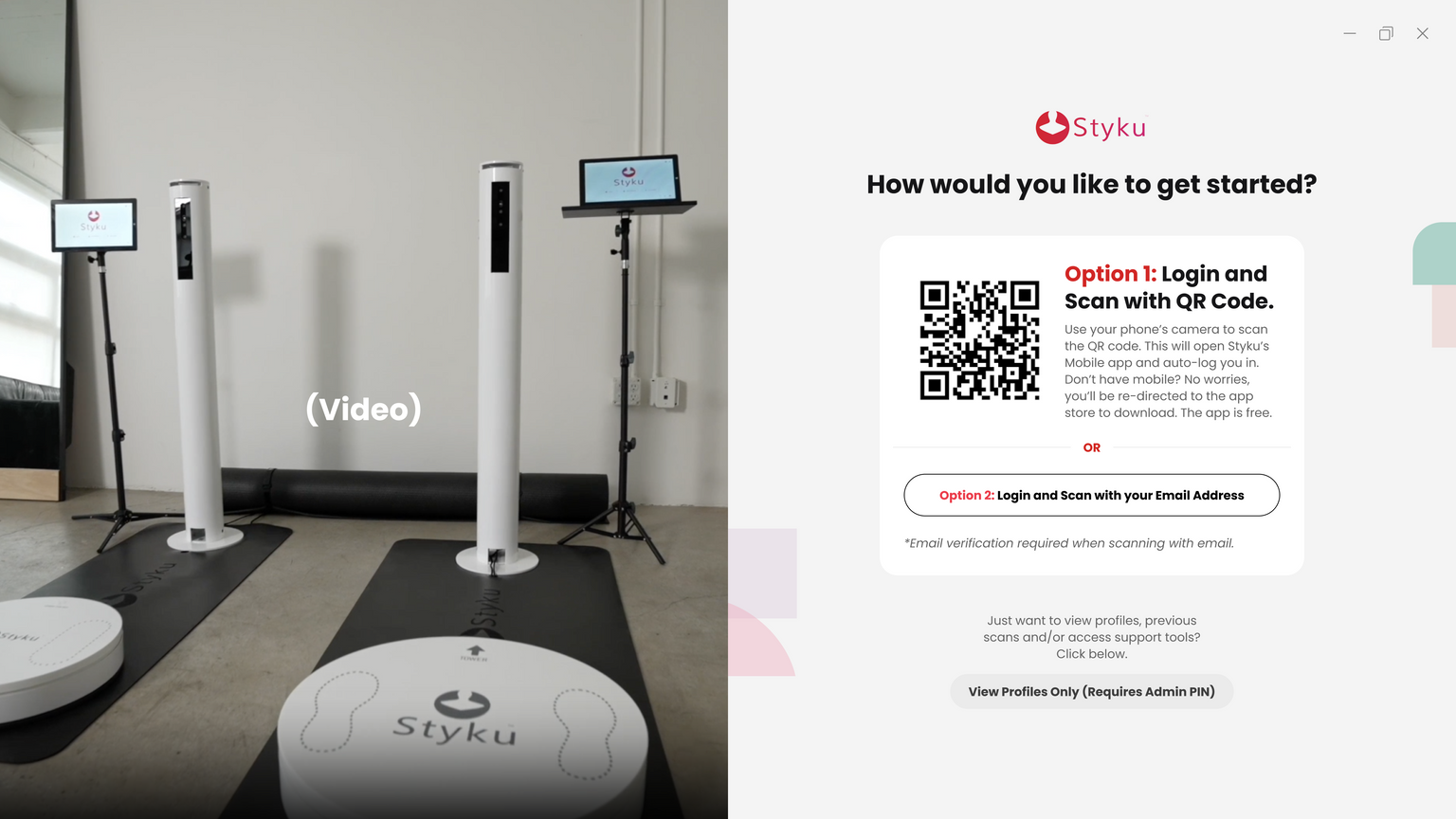
Important Note: In Studio V5, the client needs to log in to their scan profile prior to scanning. This is not the scanner administrator; this is the person who will be scanned.
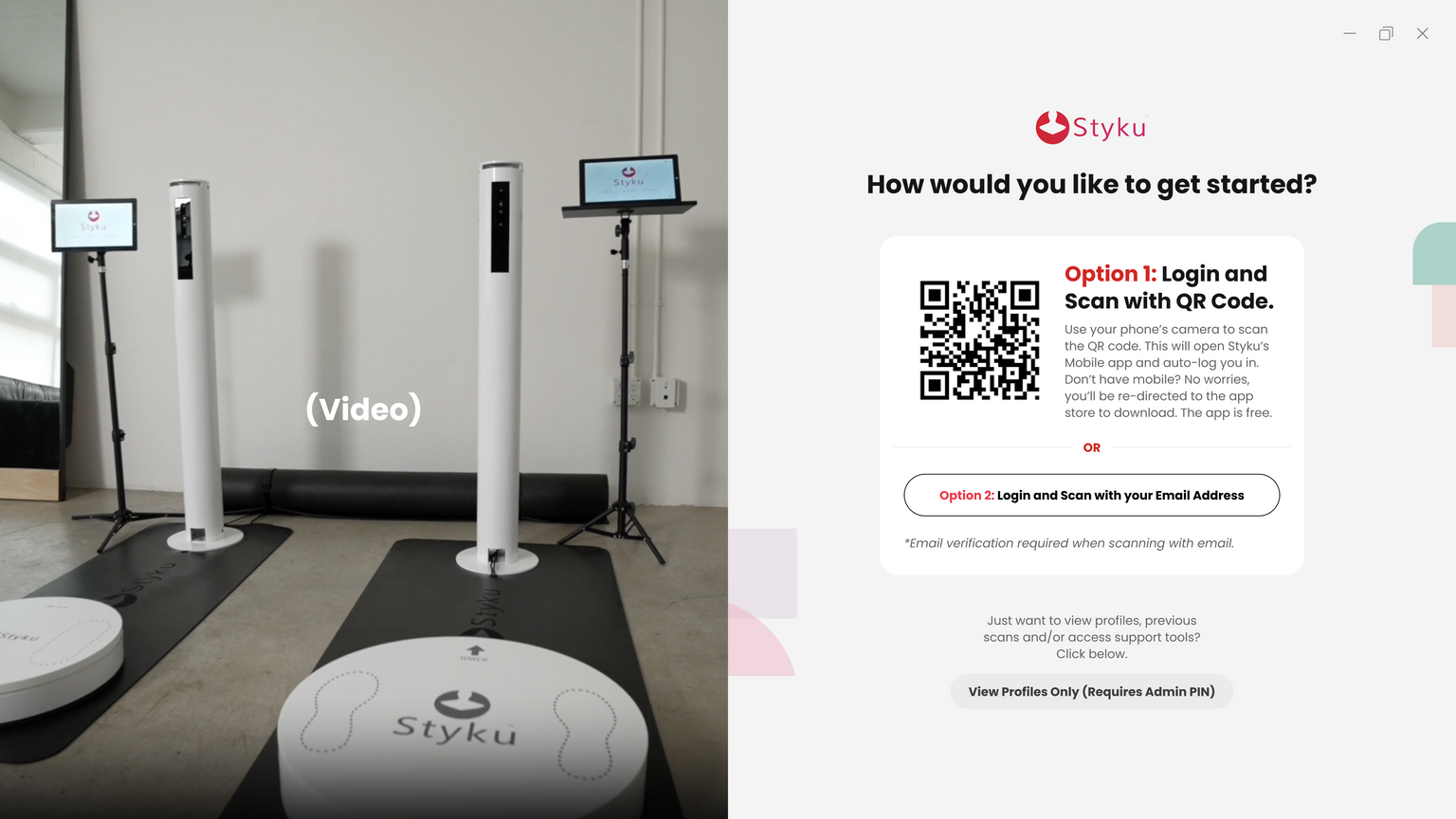
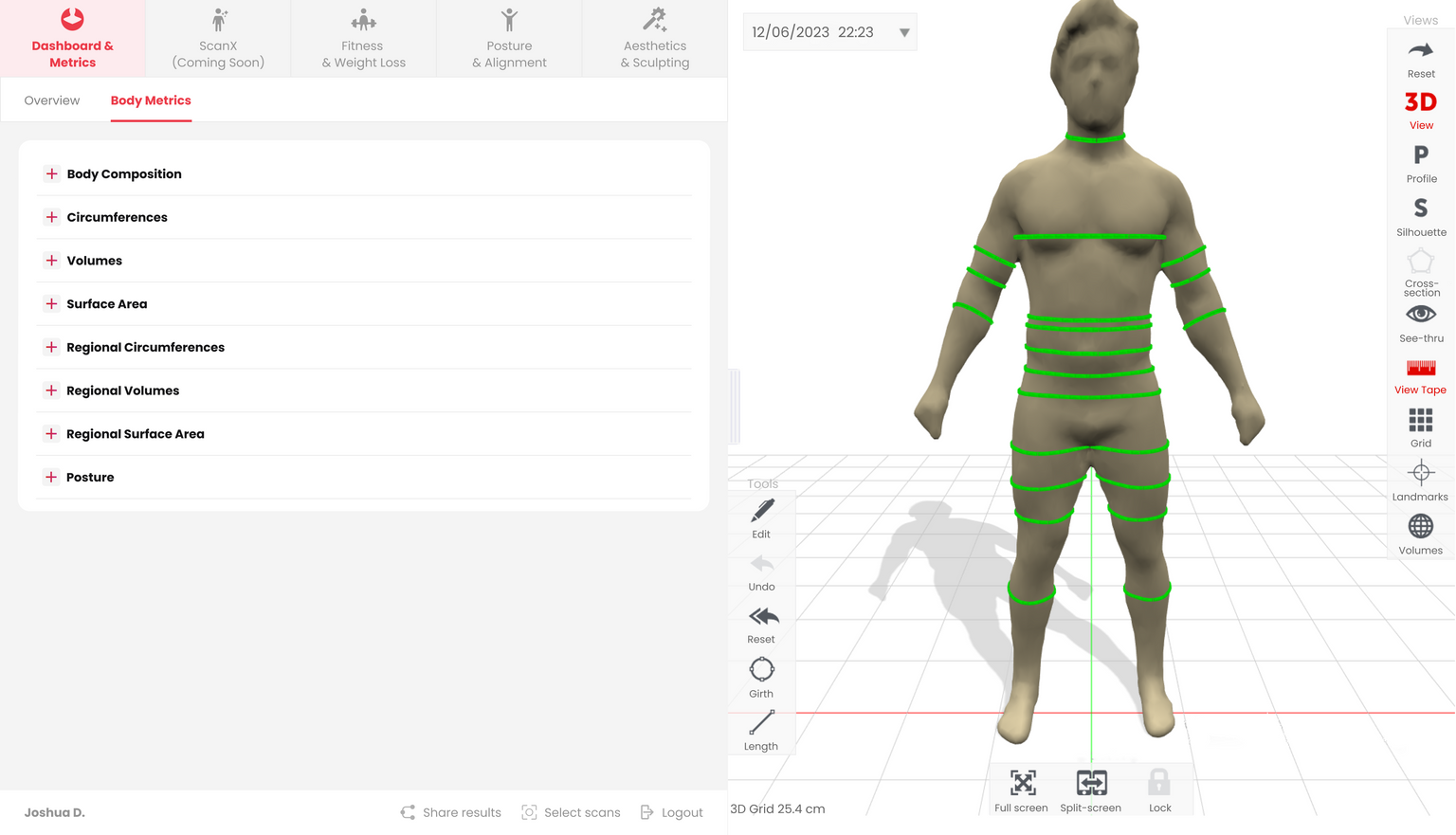
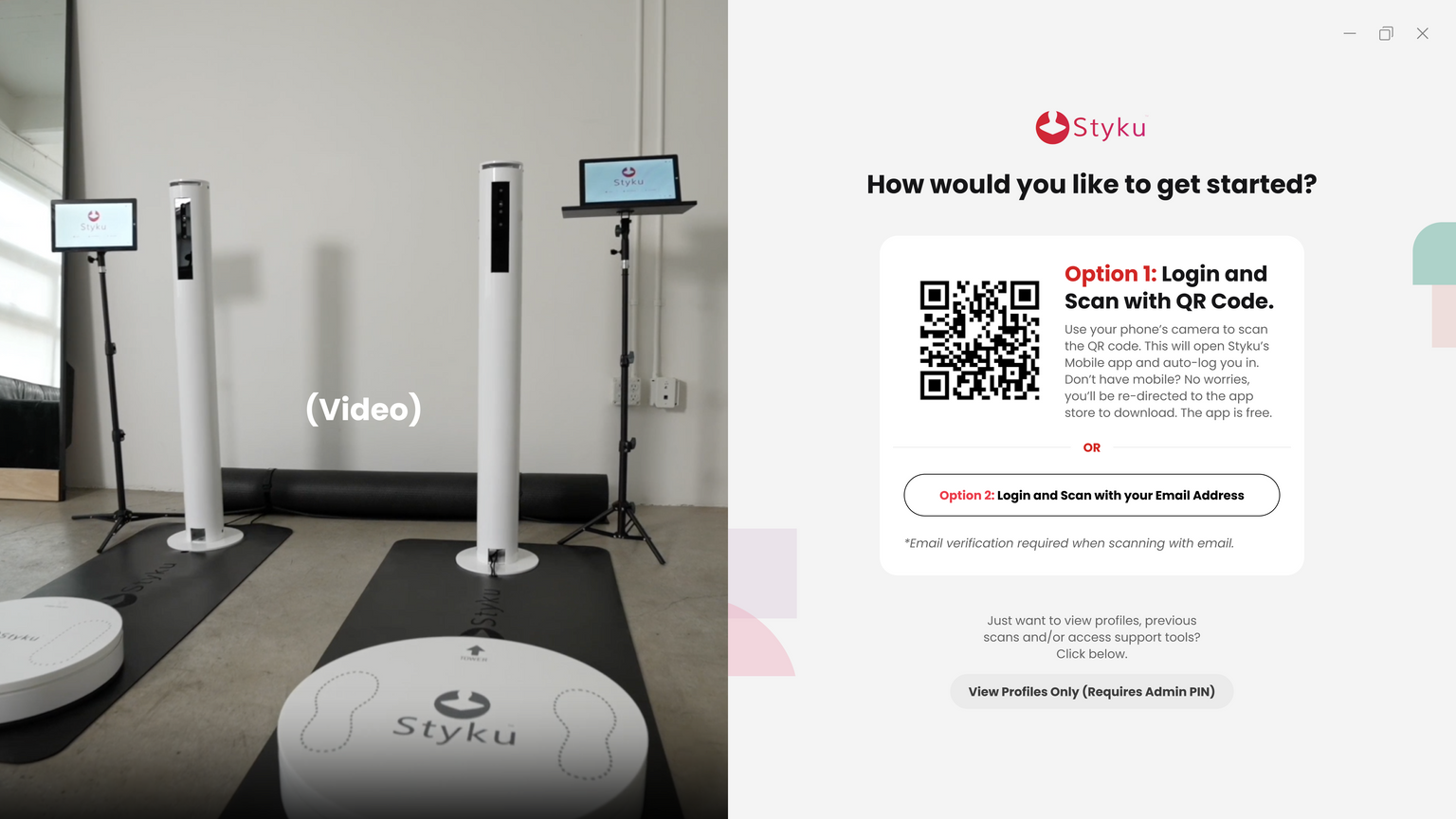
There are two options for scanning: Scan Using QR Code, and Scan Using Email.
To view profiles and set up the scanner, log in to your PIN code using the button near the bottom of the window.
How to Scan using QR Code:
Client scans QR code with phone camera
(Recommended: download app before scanning)
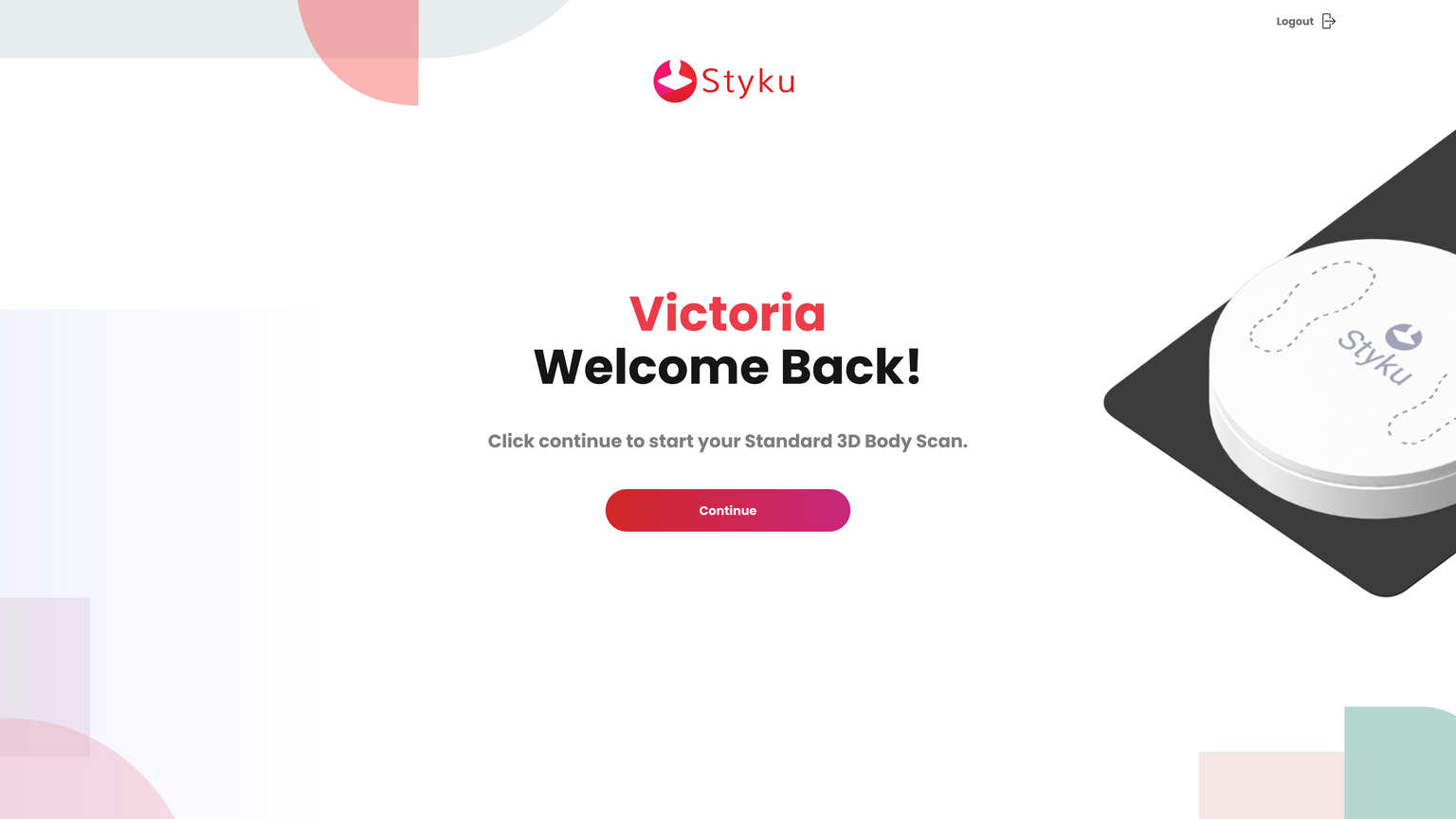
Select Continue on welcome screen
https://2640795.fs1.hubspotusercontent-na1.net/hubfs/2640795/undefined-4.png
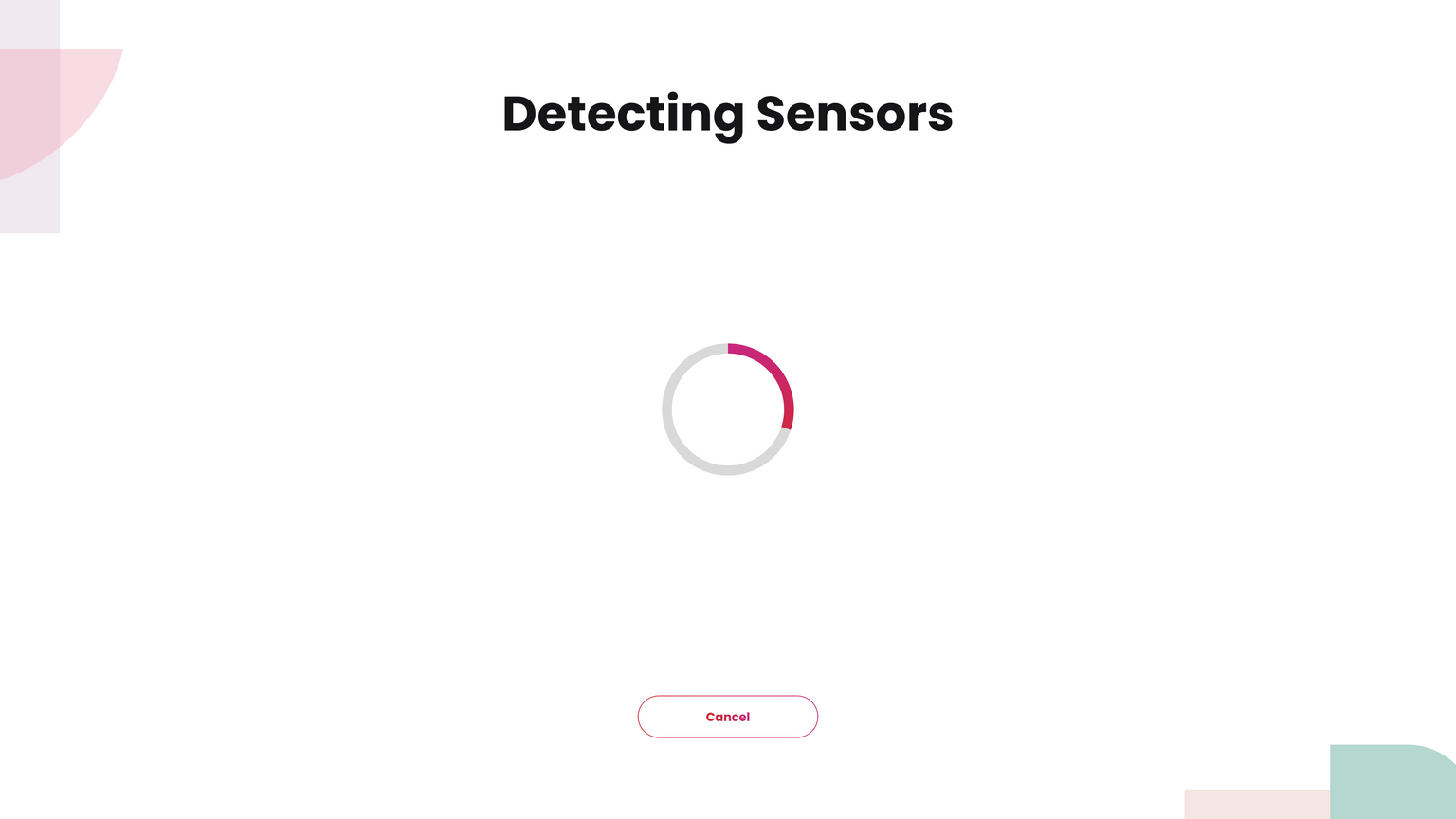
System checks sensor + turntable
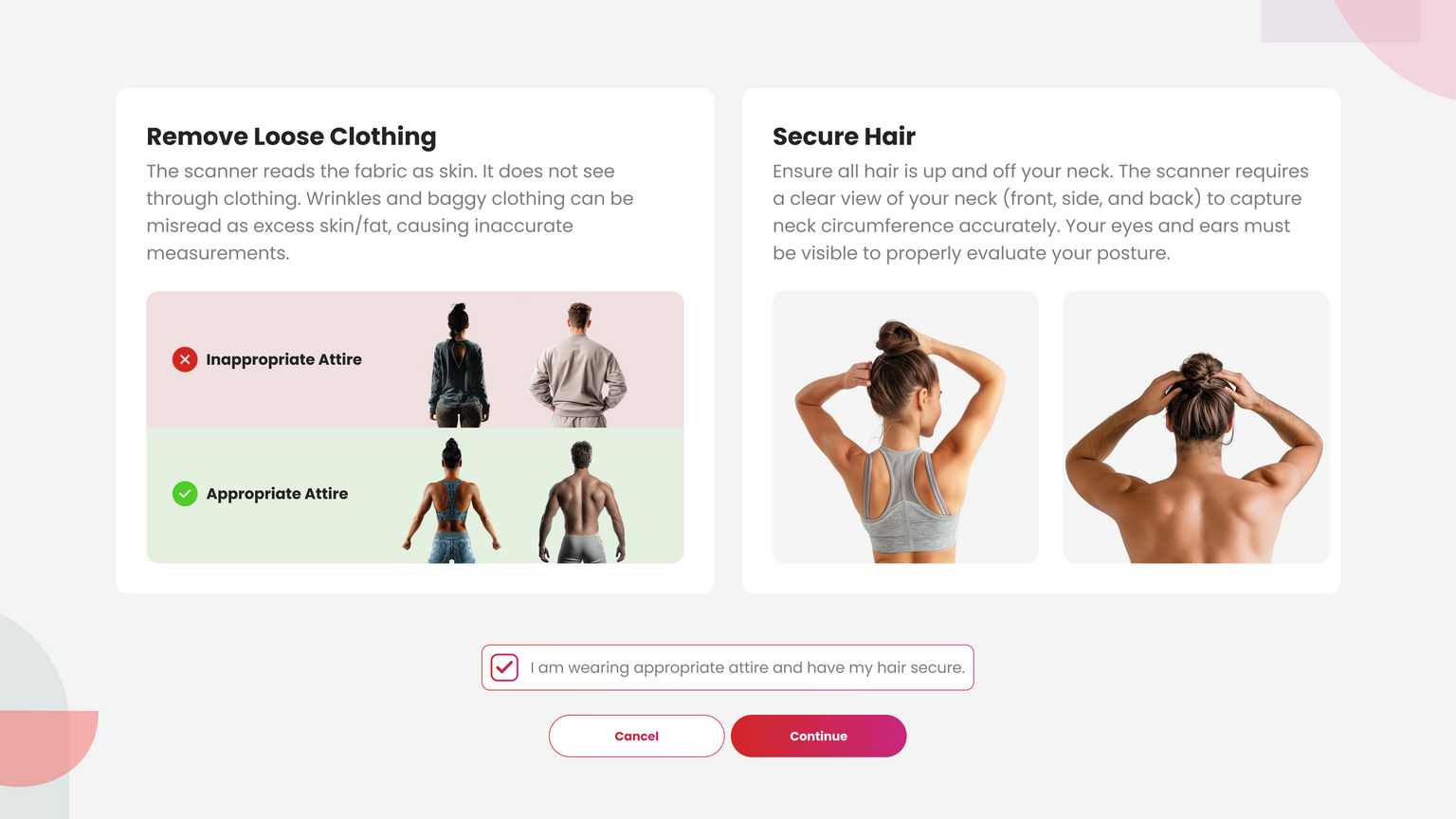
Confirm proper scan attire
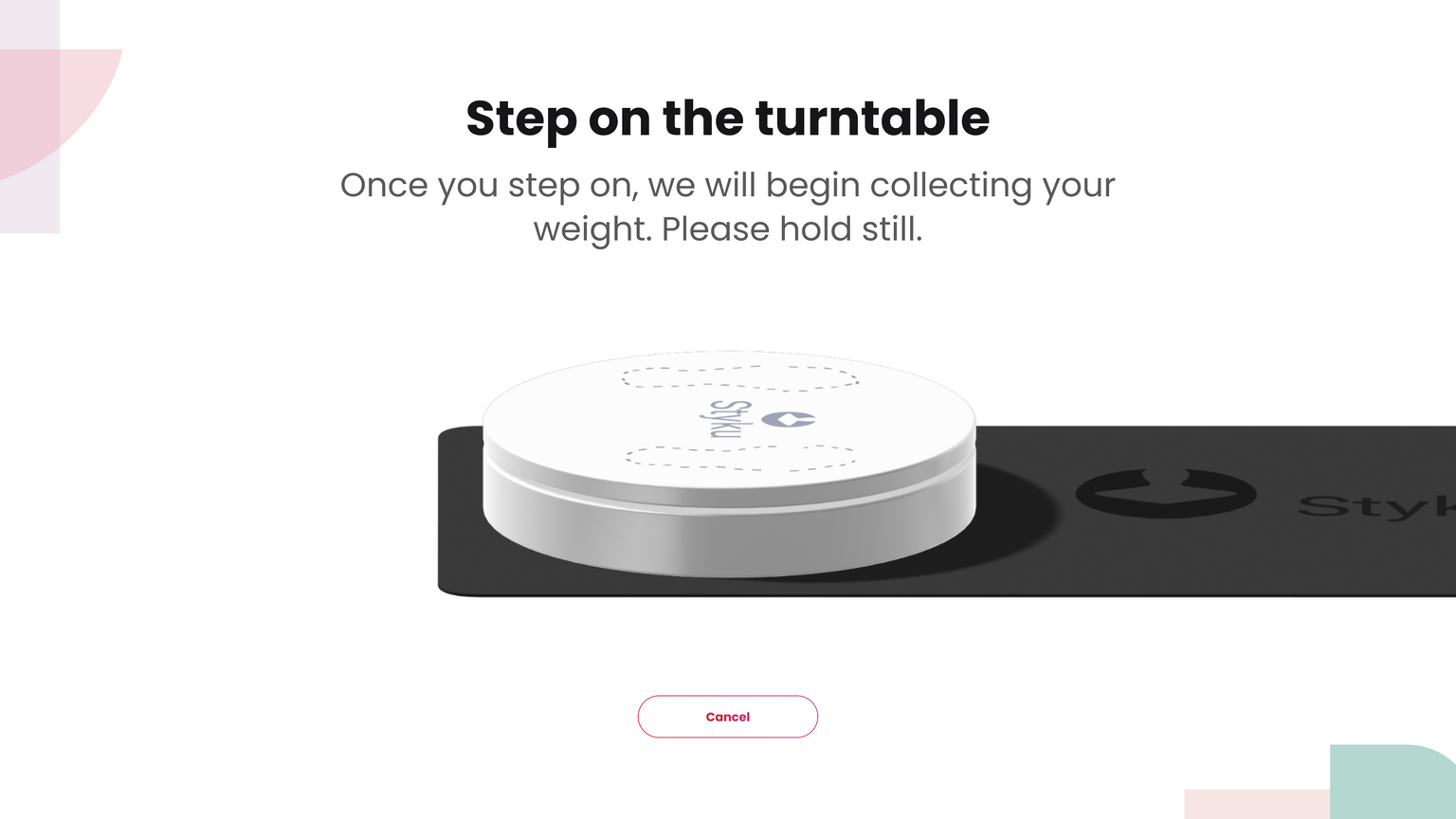
Client steps onto turntable for weight
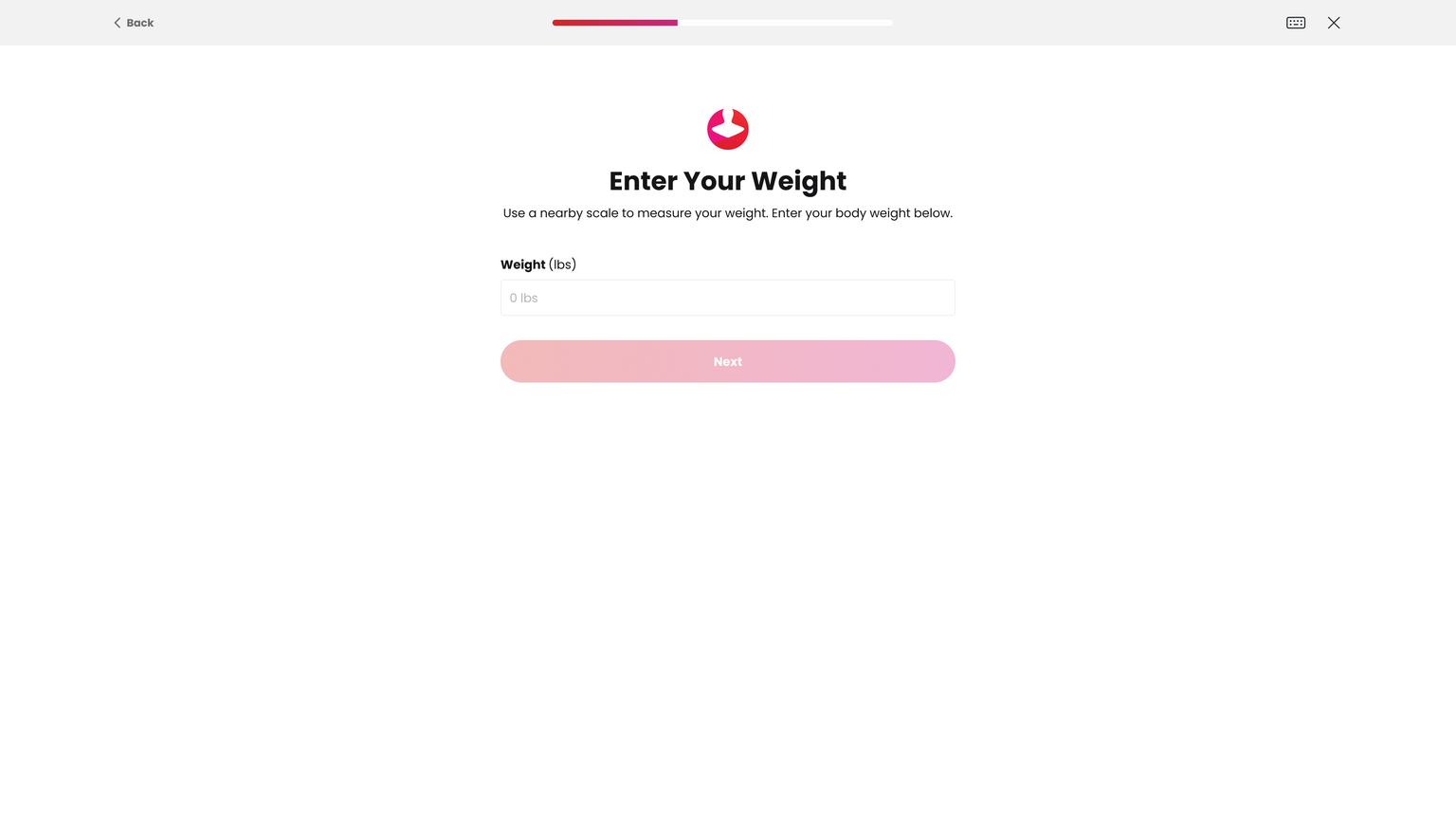
If weight not detected → Enter weight manually
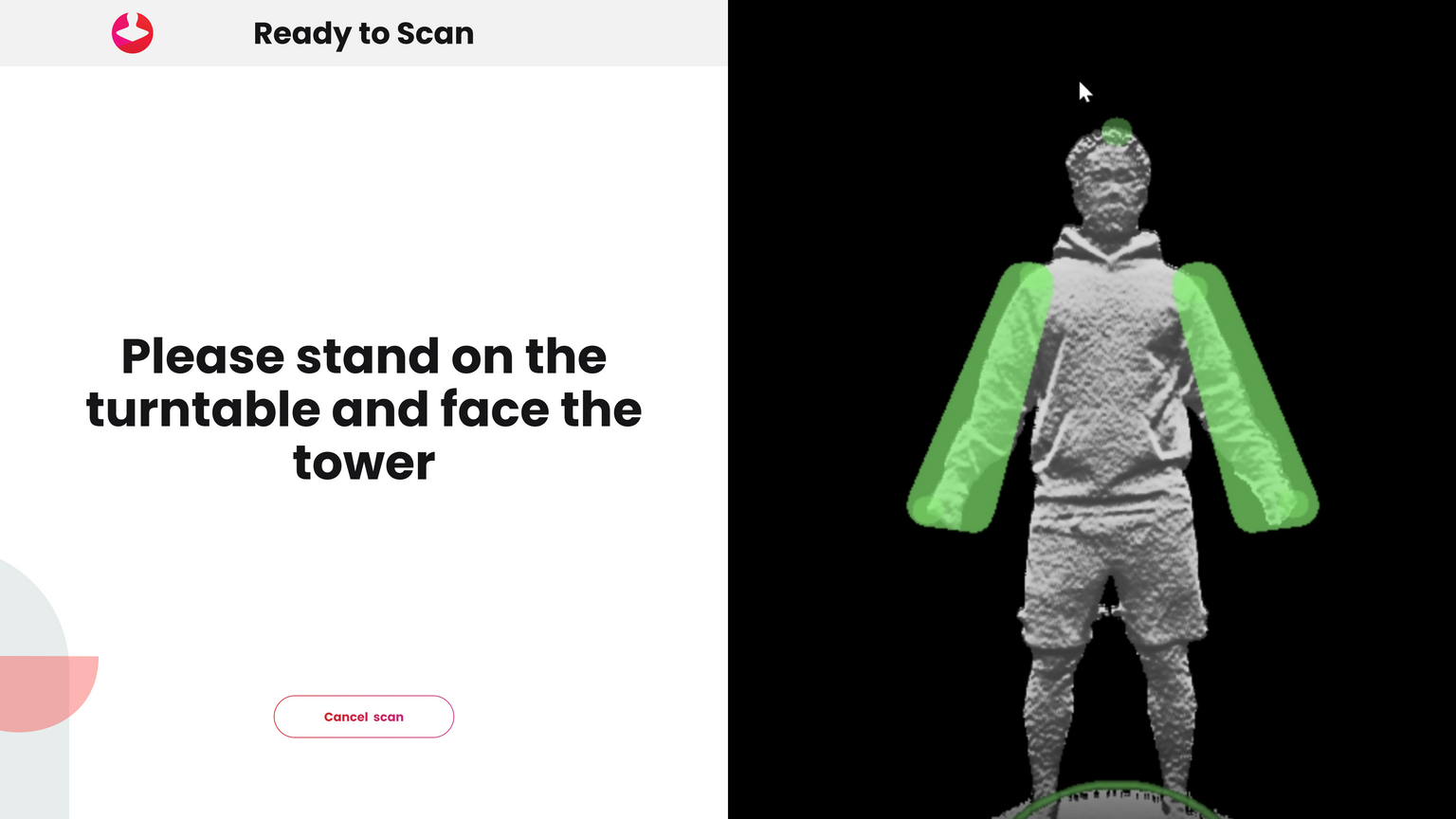
Assume A-pose
Align until pose frames turn green
Scan begins
Remain still while spinning
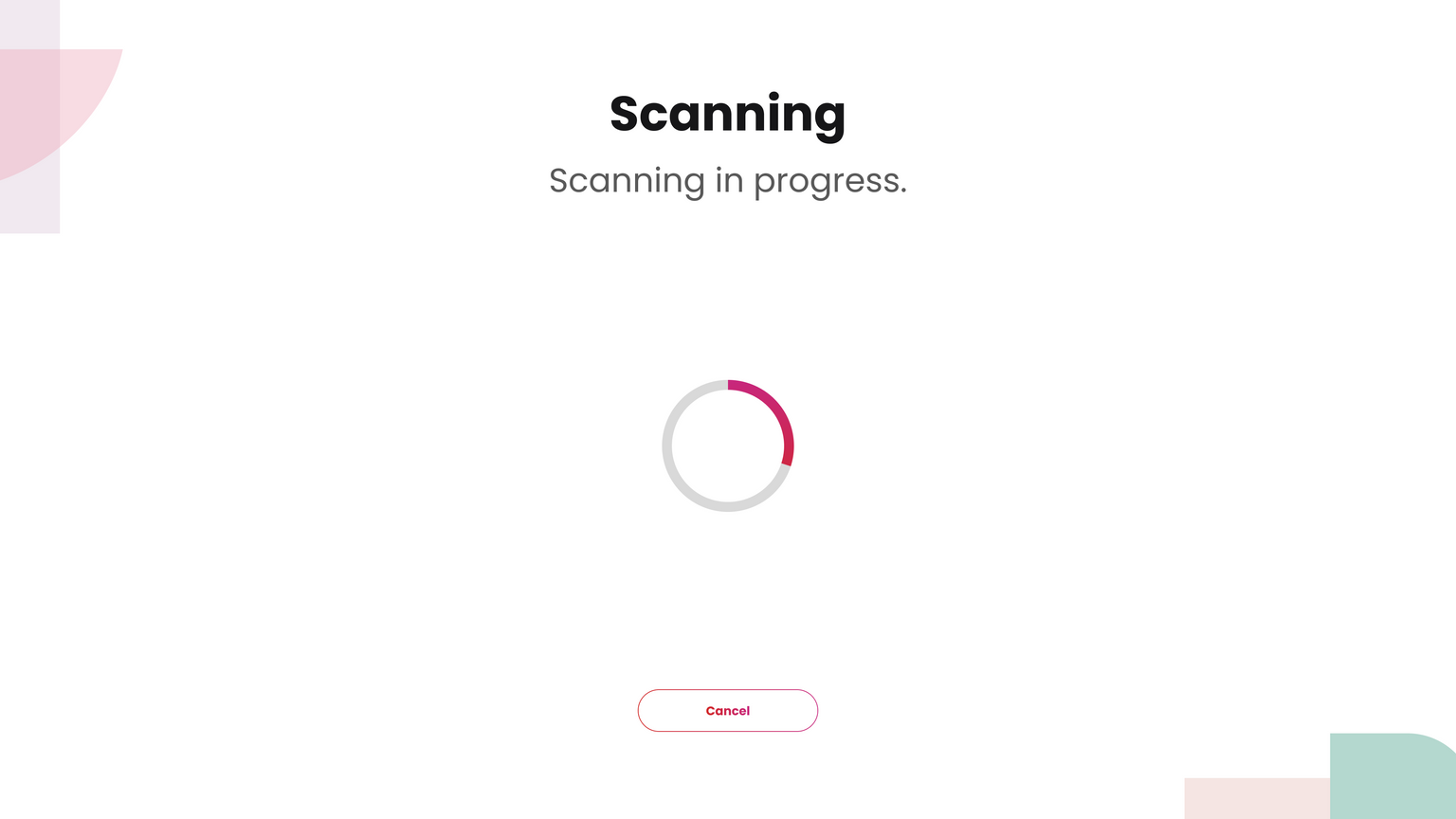
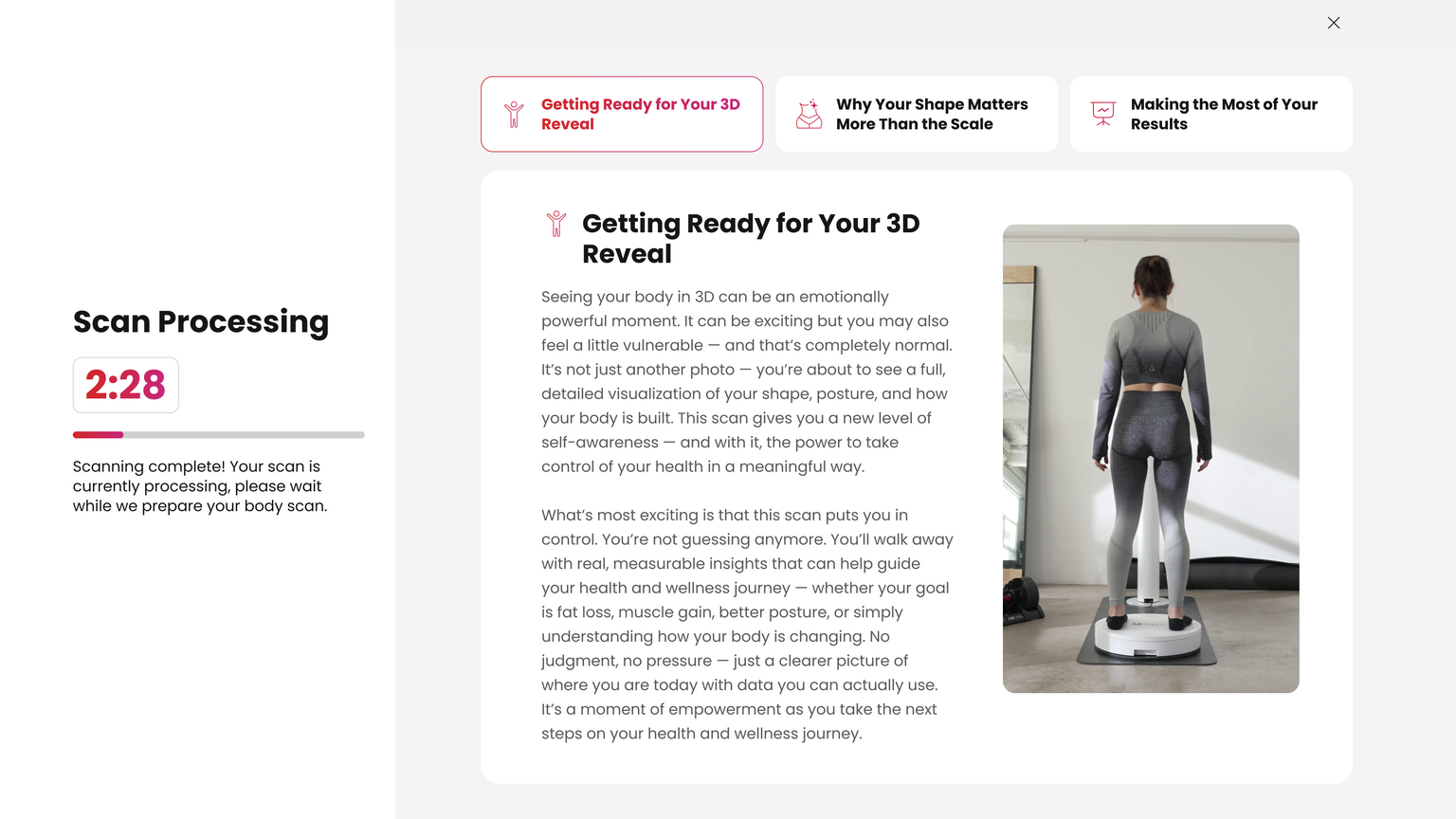
Scan processing and measuring
Remain in scan attire
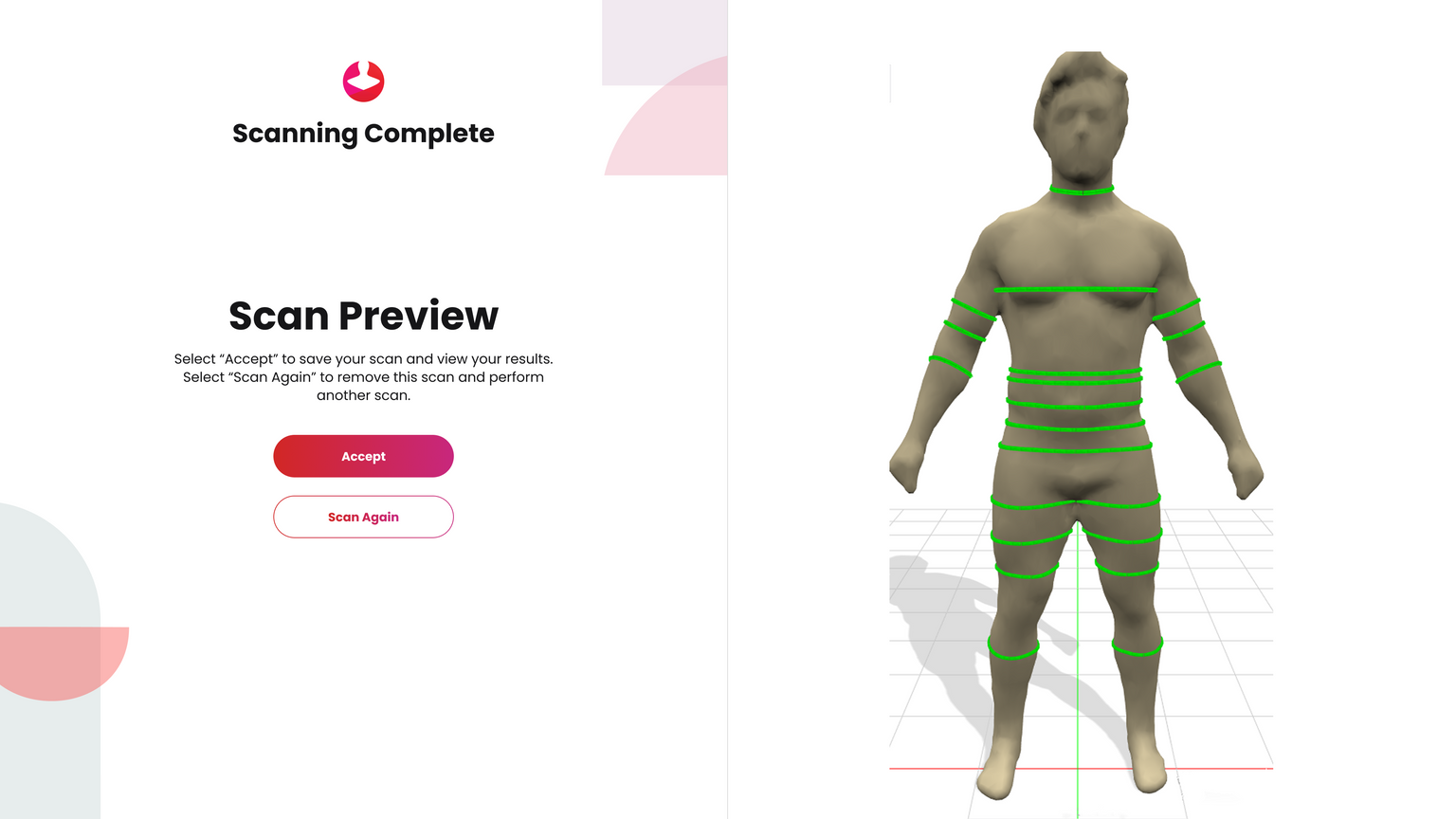
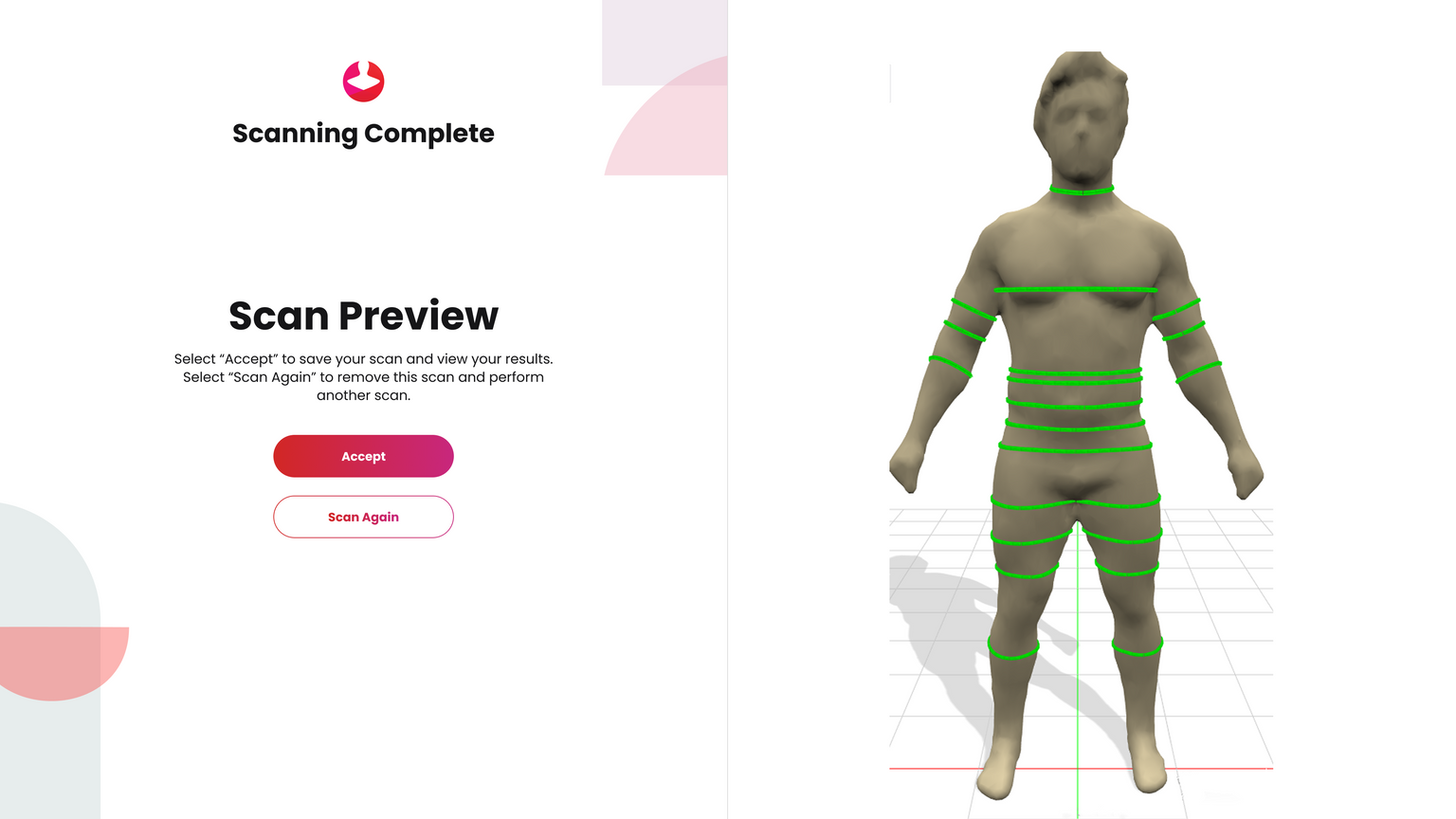
Review scan
Accept or Scan Again
Scan Again deletes the scan and restarts the process
Predicted measurements → Rescan recommended unless scan looks acceptable
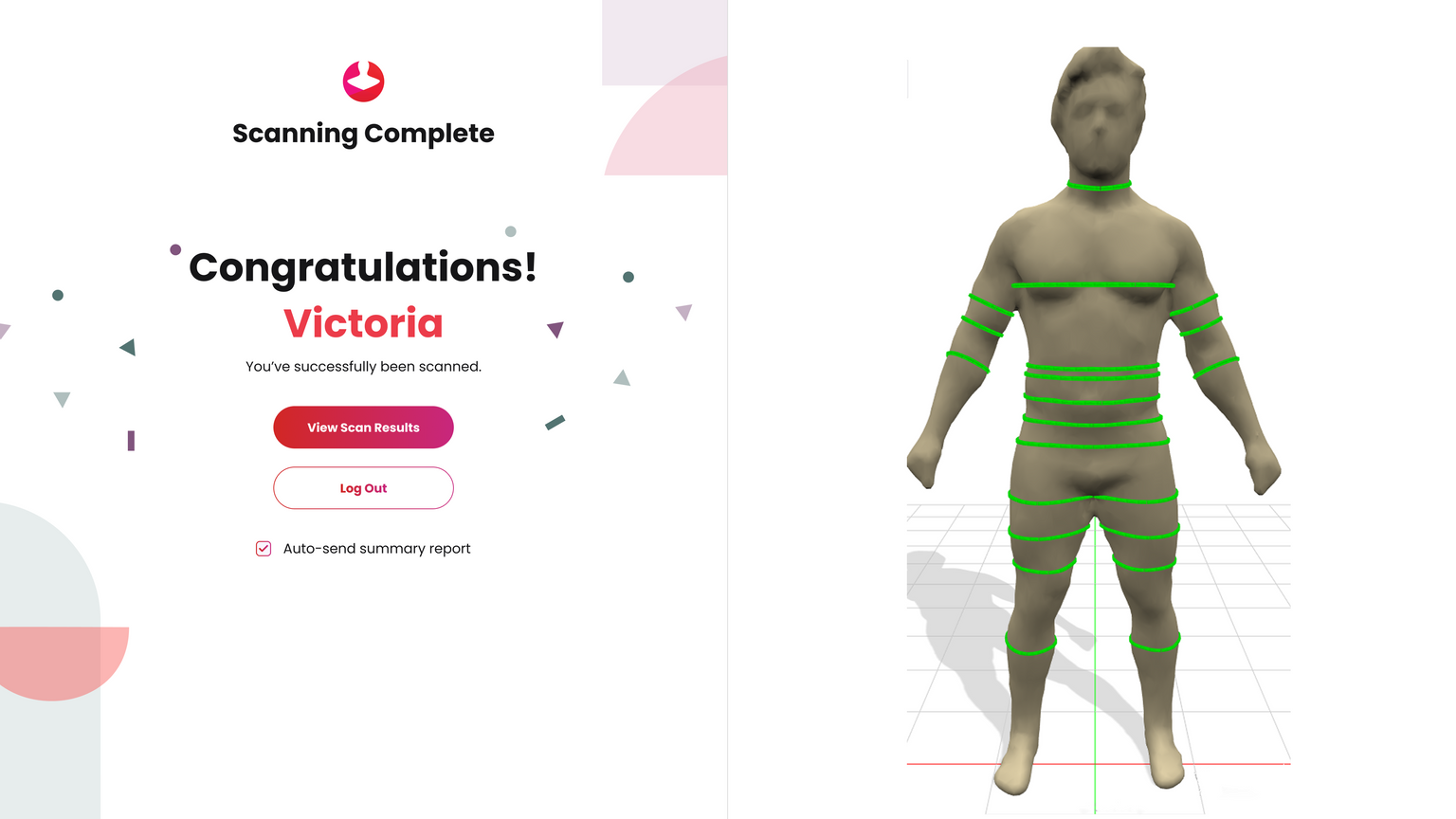
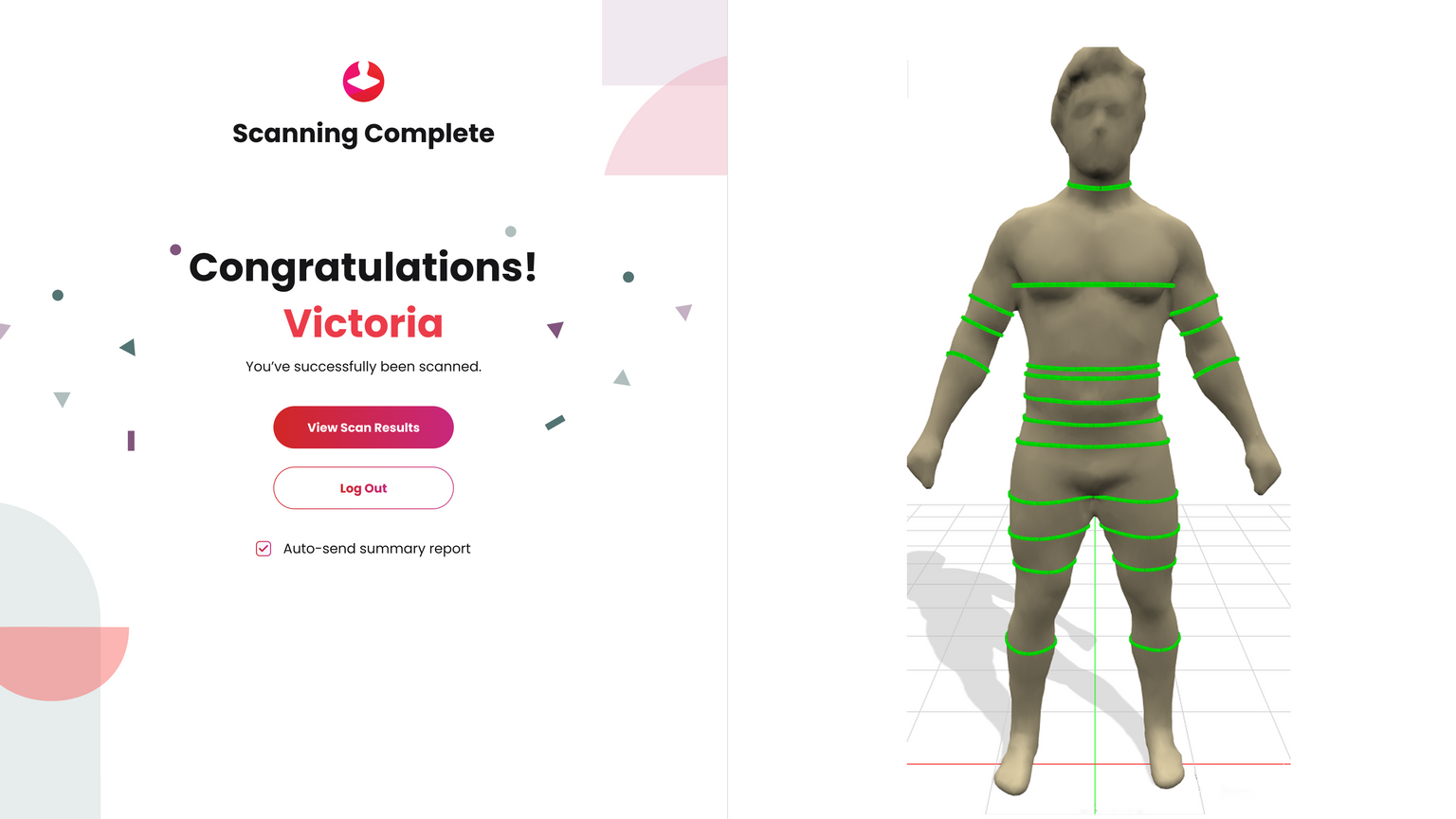
Scan accepted
Client may review results in the software or log out
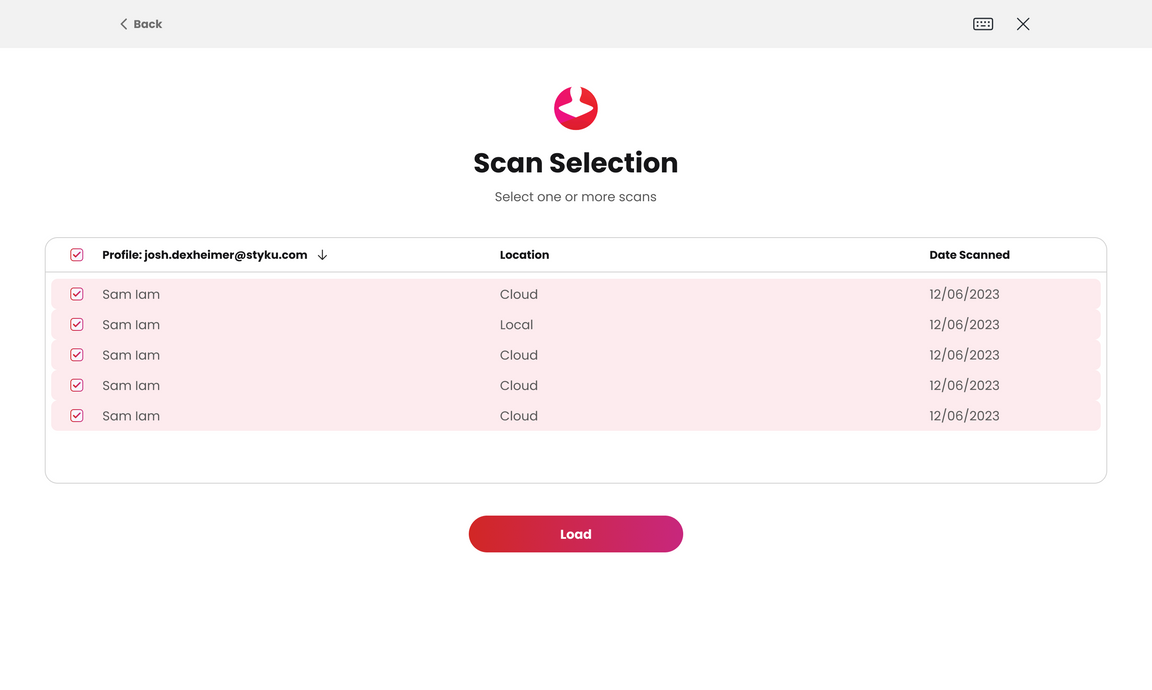
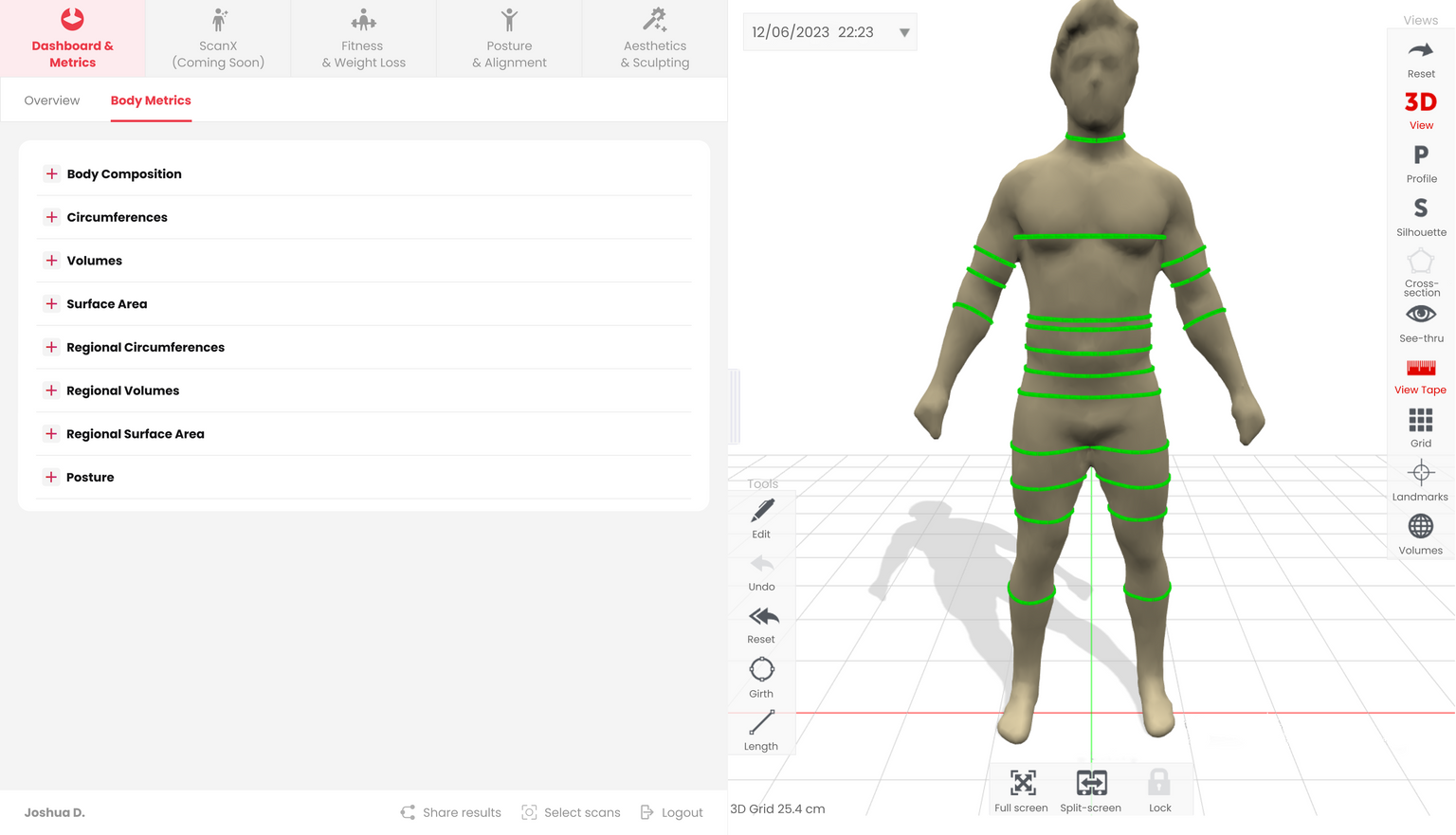
Tap Select Scans in bottom navigation
Choose scans to load into analysis
How to scan using Email:
Scan Steps
Select Option 2: Login and scan with your email address
Client enters email address
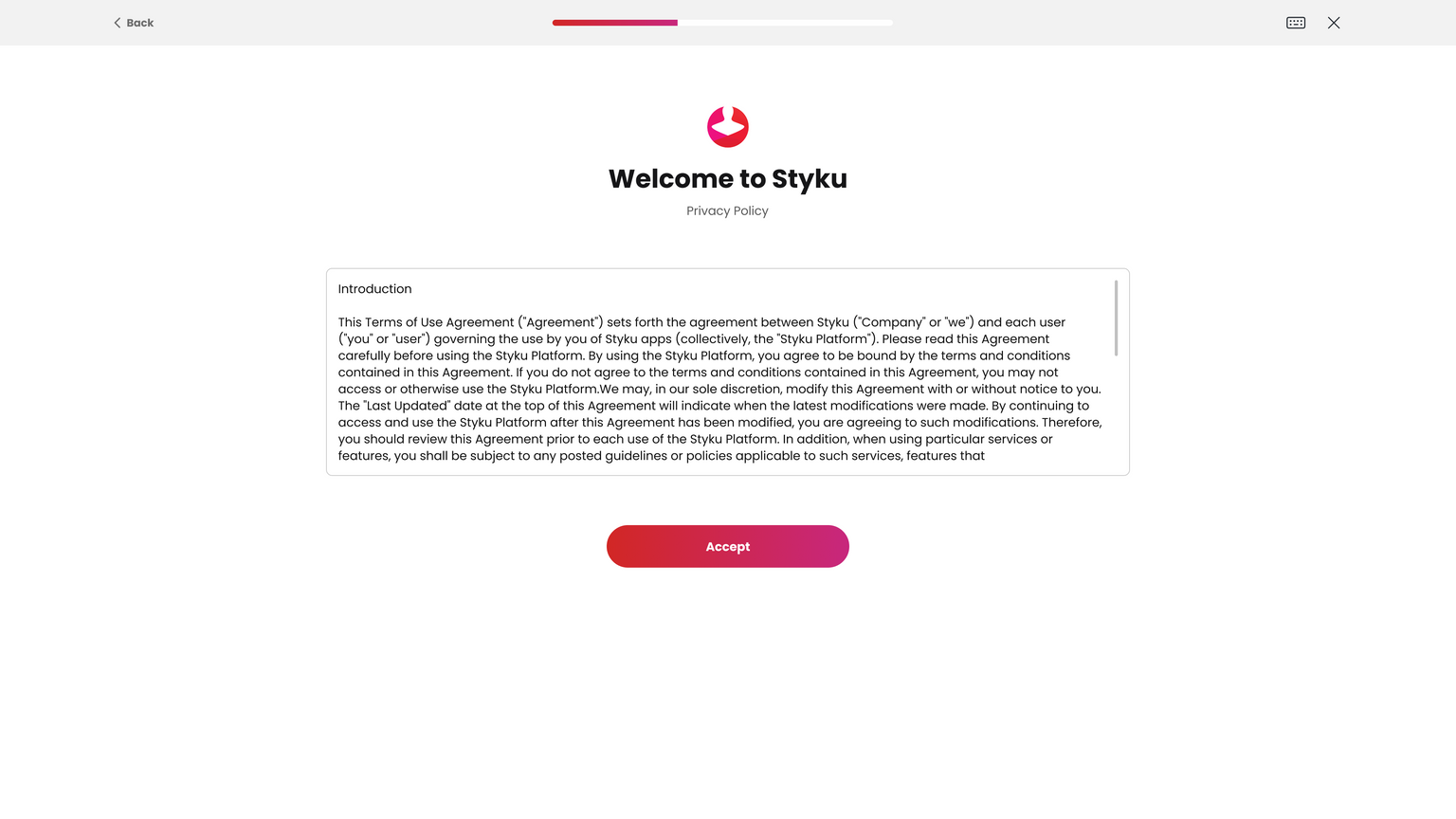
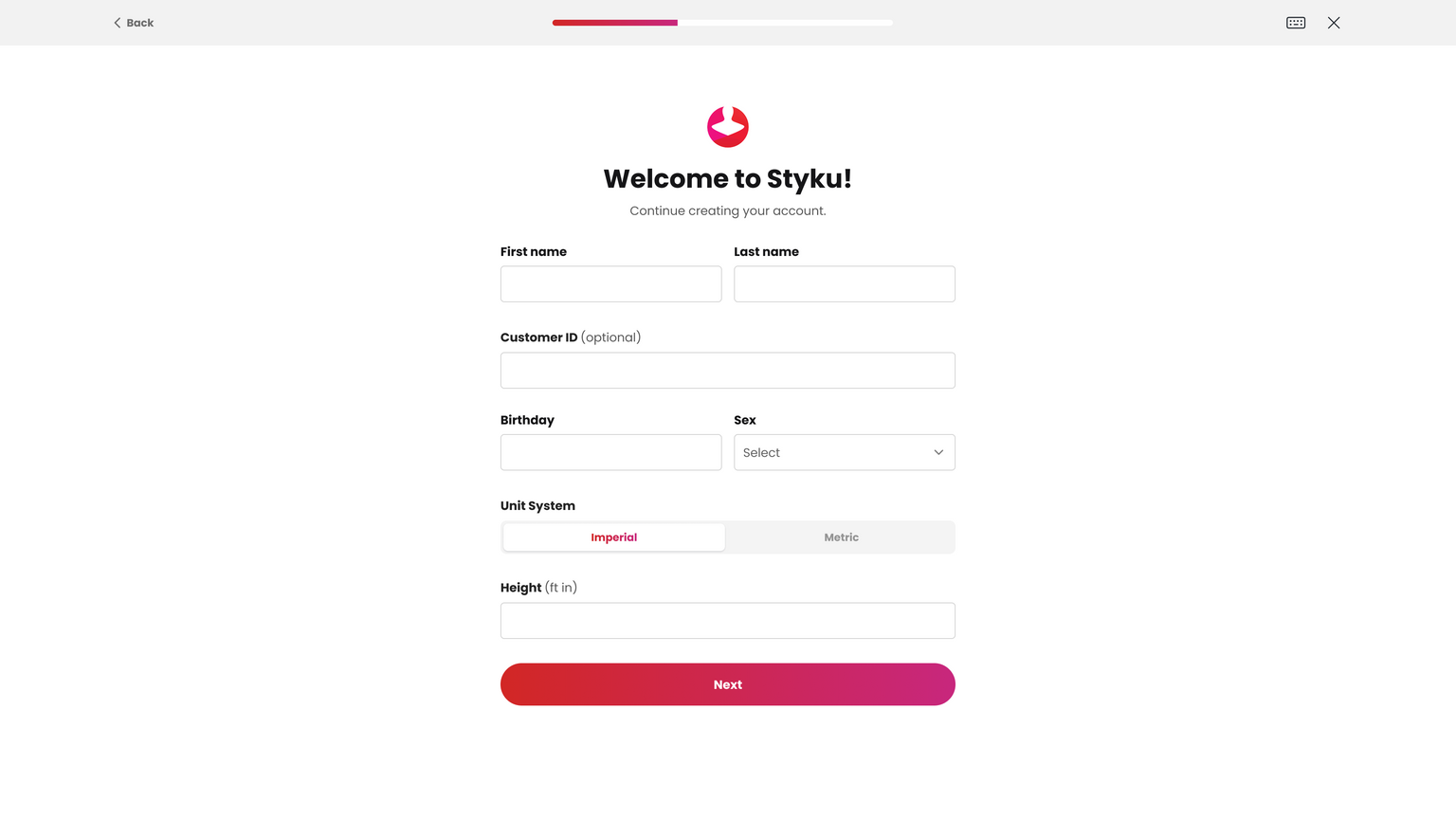
New client → Create profile
https://2640795.fs1.hubspotusercontent-na1.net/hubfs/2640795/undefined-Jan-21-2026-11-49-59-9819-PM.png https://2640795.fs1.hubspotusercontent-na1.net/hubfs/2640795/undefined-Jan-21-2026-11-53-39-6975-PM.png
Returning client (this location) → Profile found
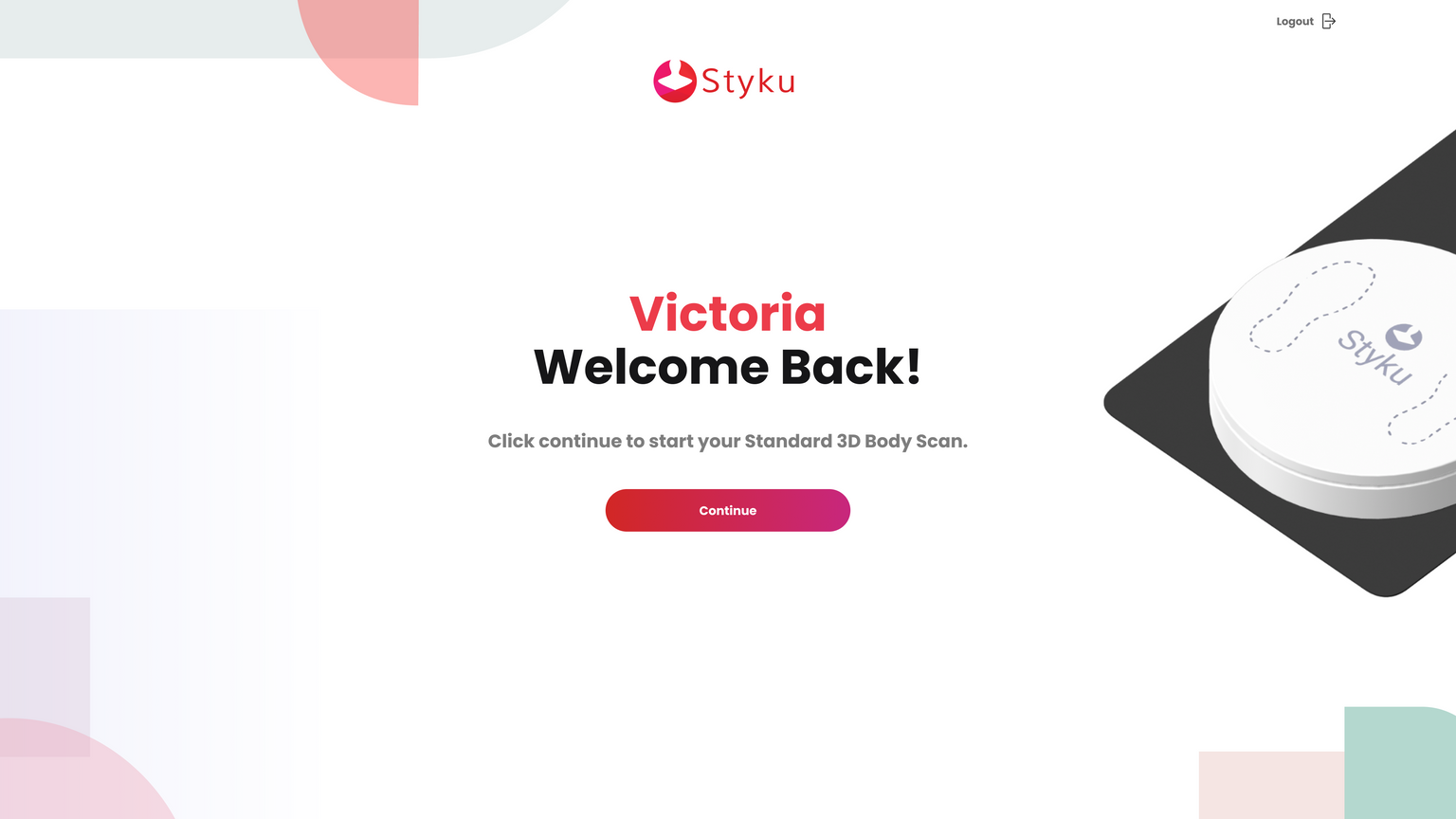
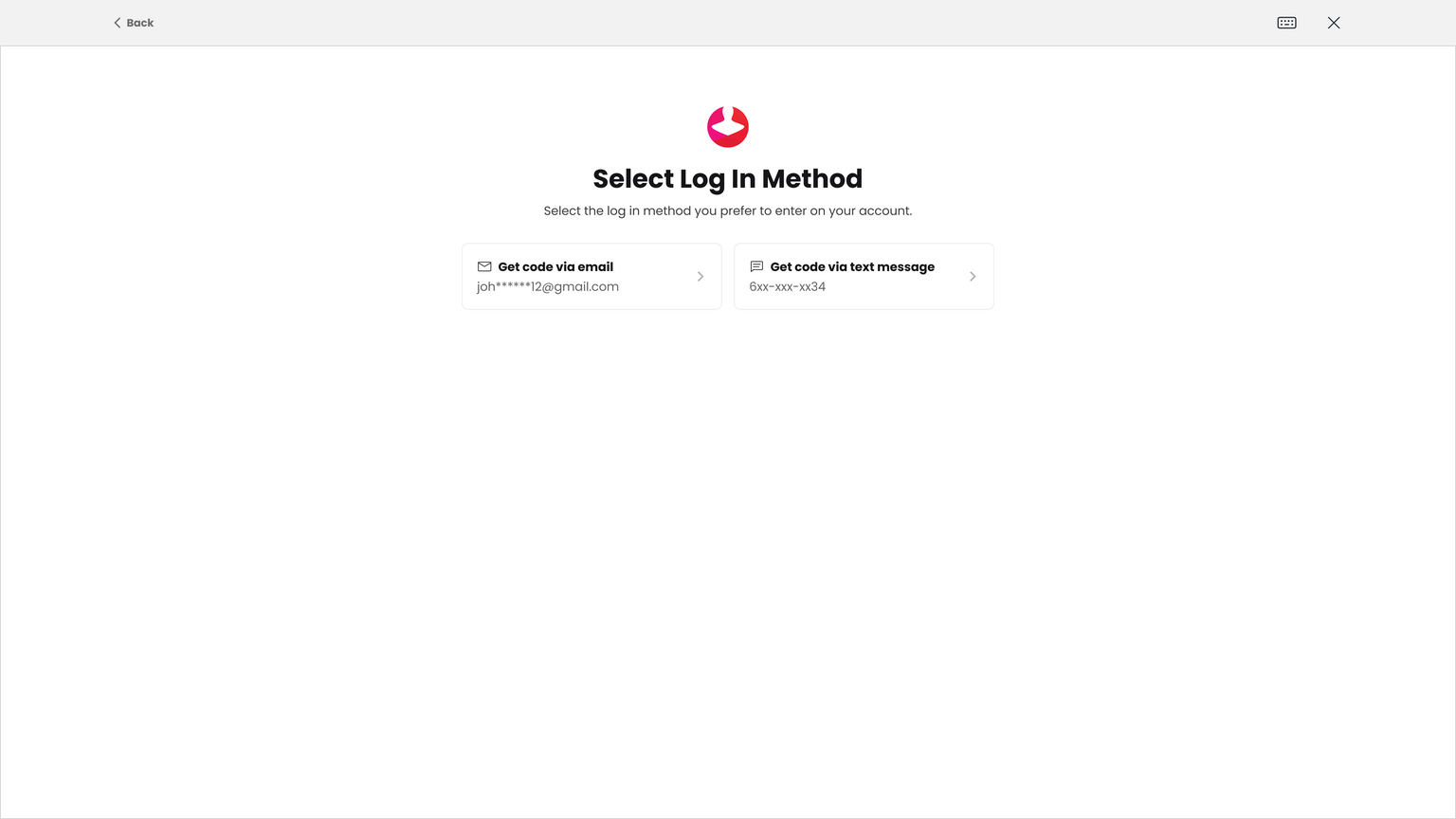
Verified mobile app user → Enter one-time verification code
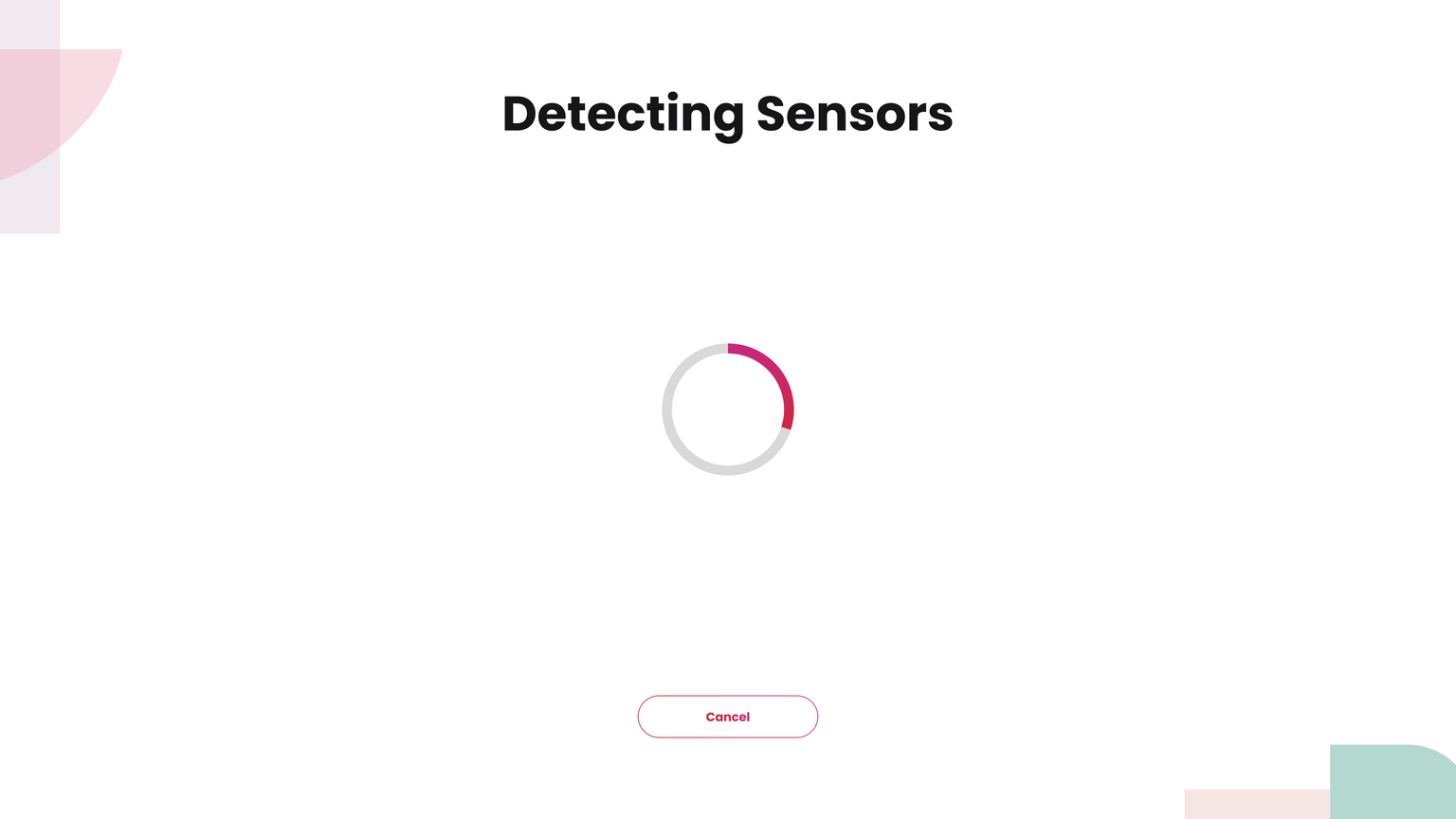
System checks sensor + turntable
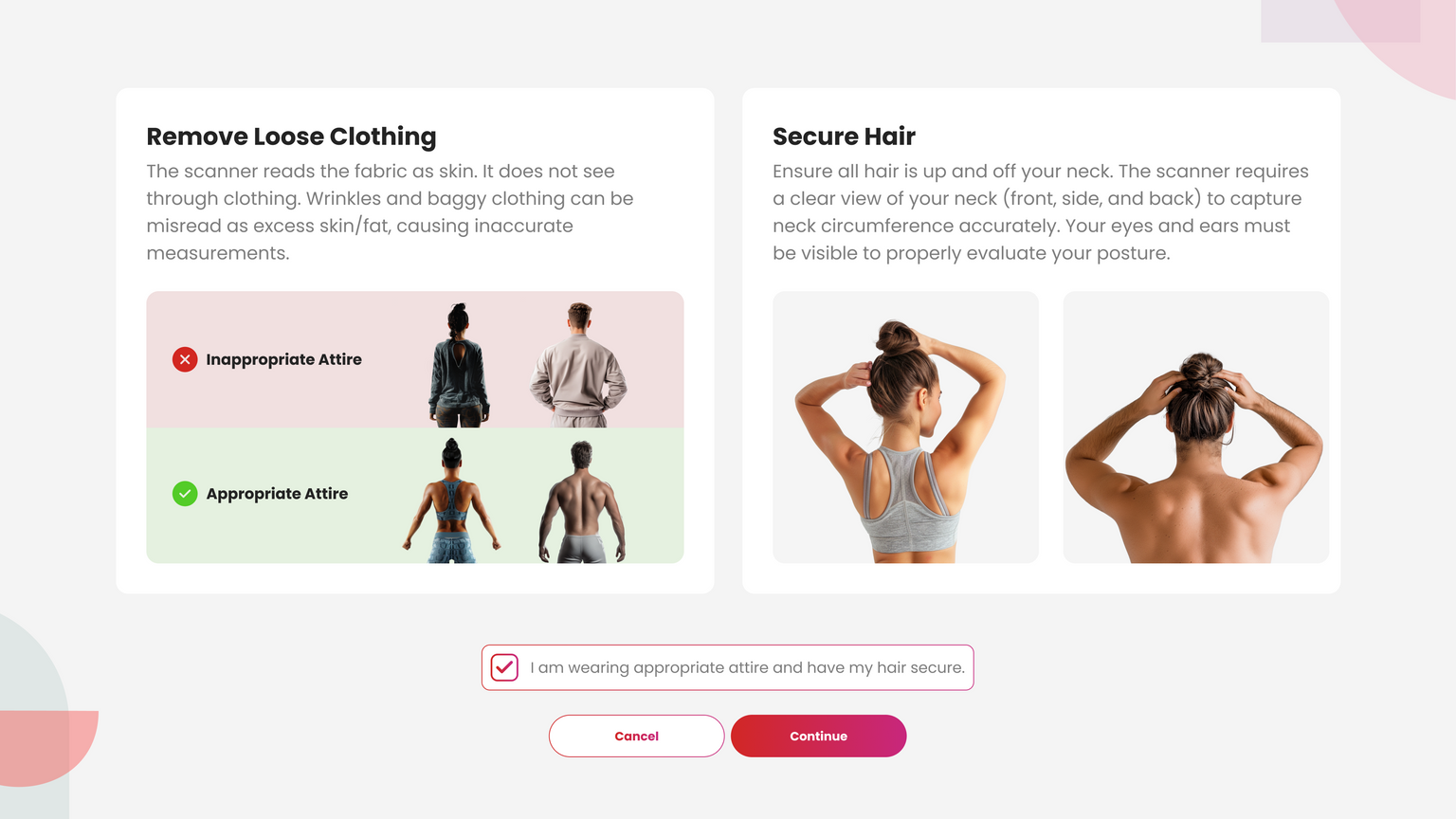
Confirm proper scan attire
Client steps onto turntable for weight
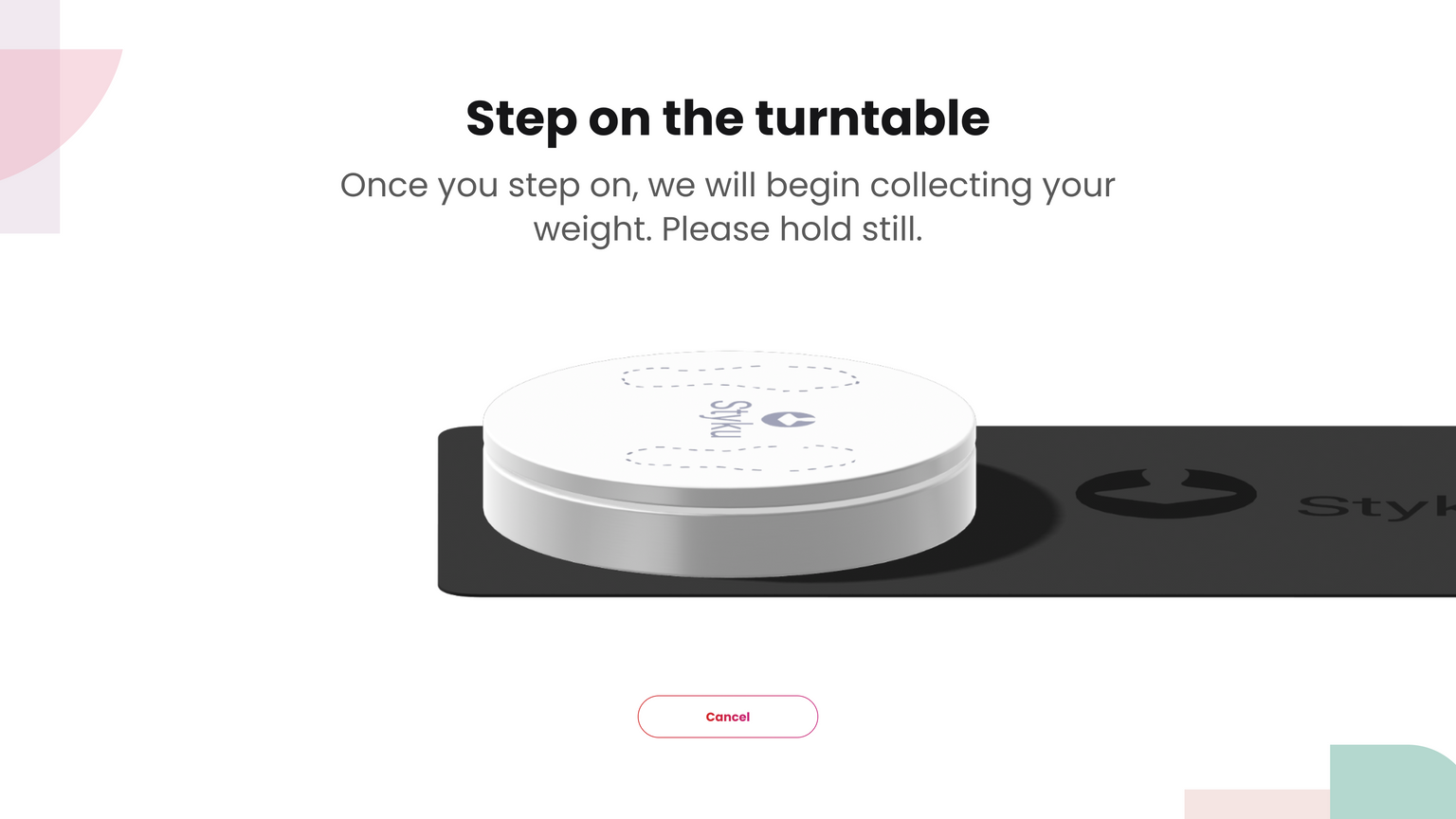
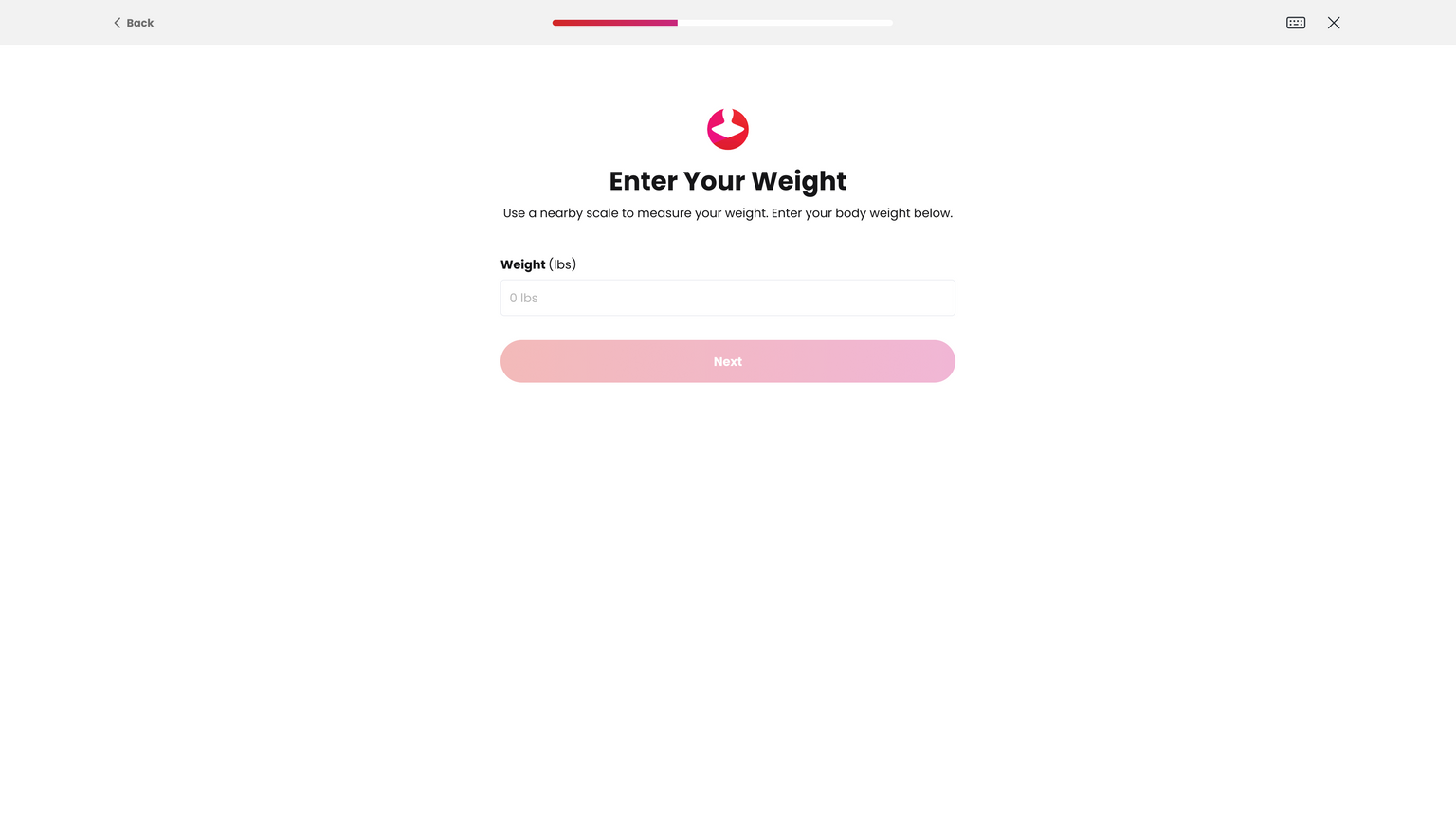
If weight not detected → Enter weight manually
Assume A-pose
Align until pose frames turn green
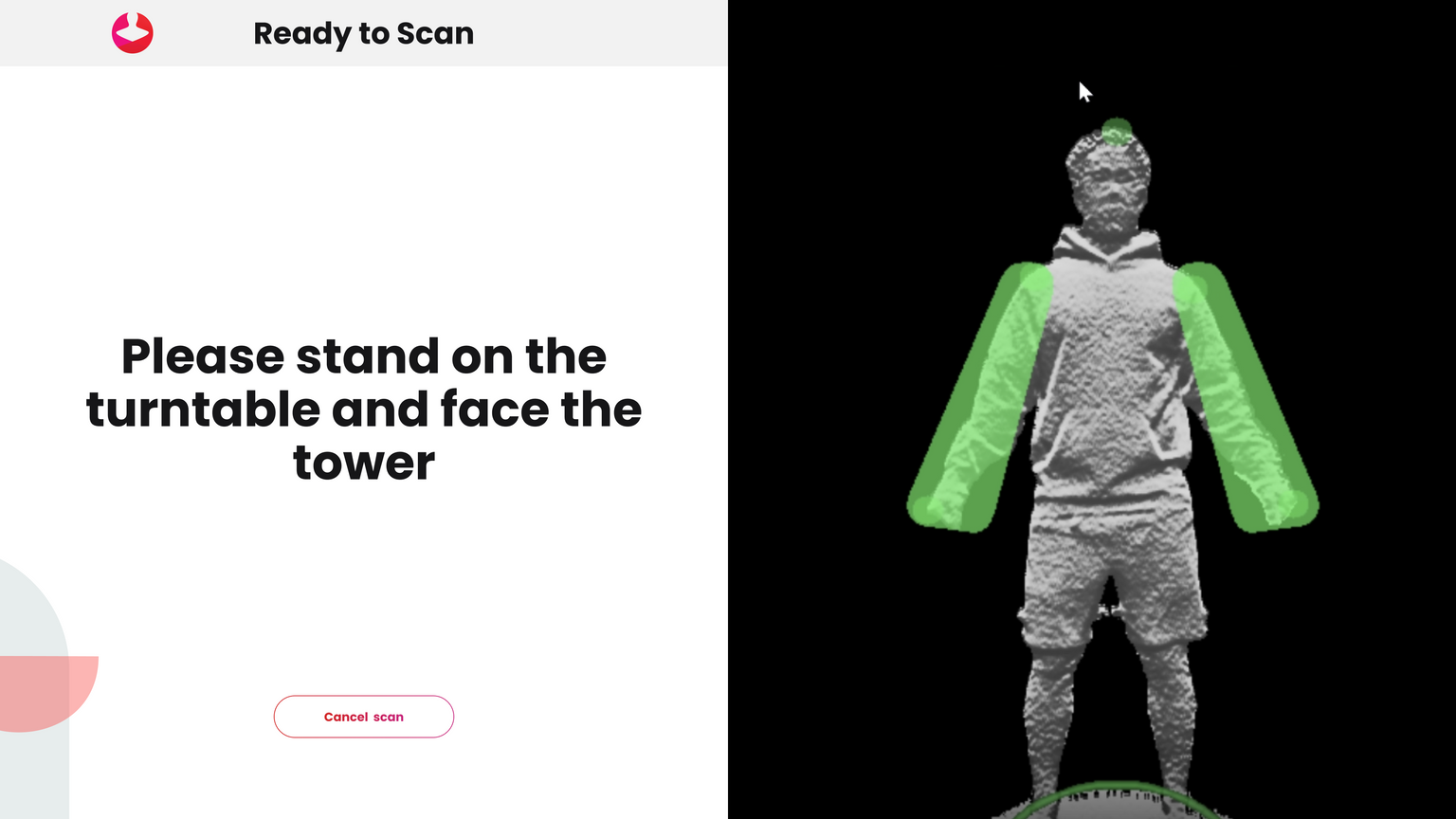
Scan begins
Remain still while spinning
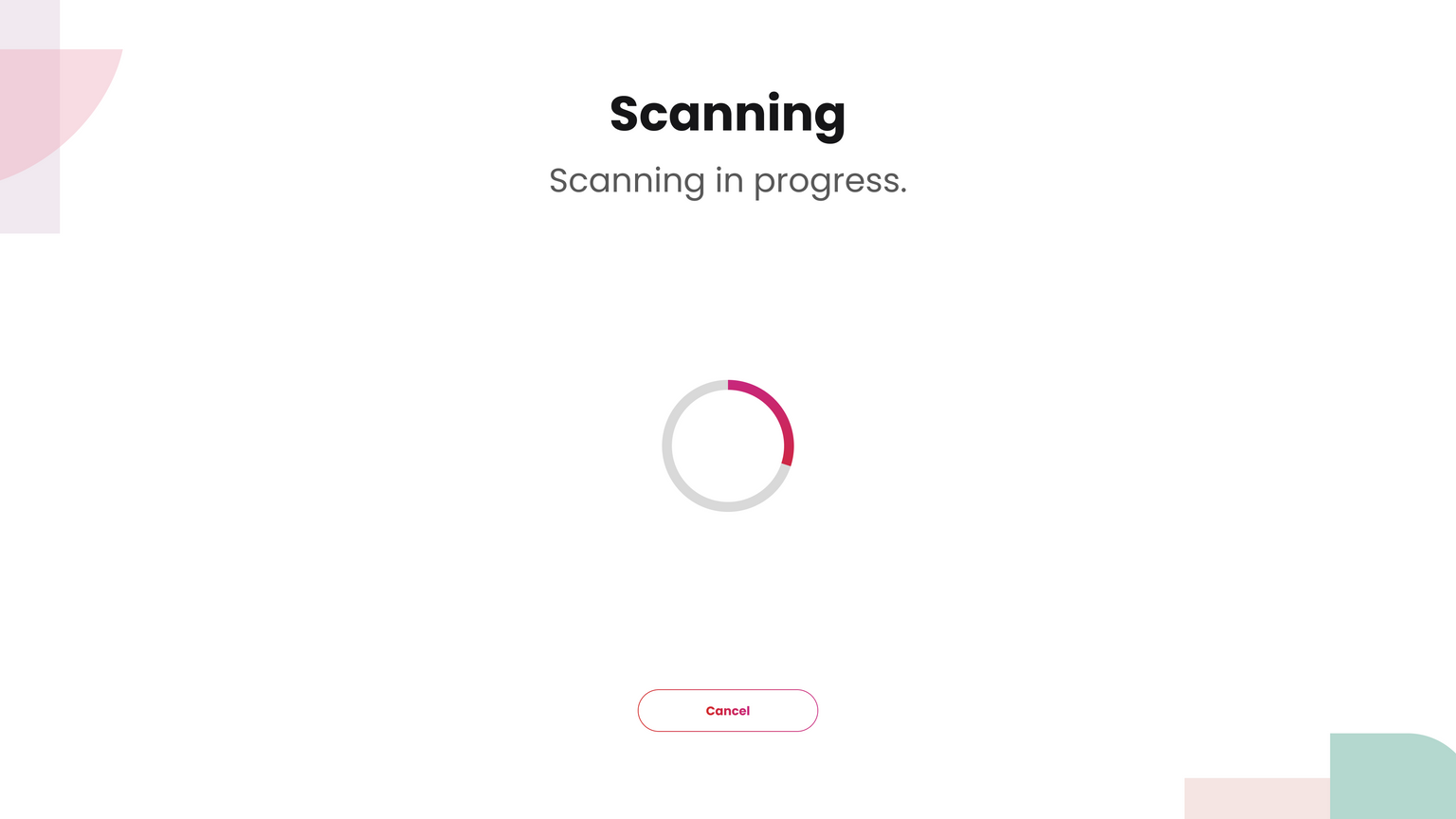
Scan processing and measuring
Remain in scan attire
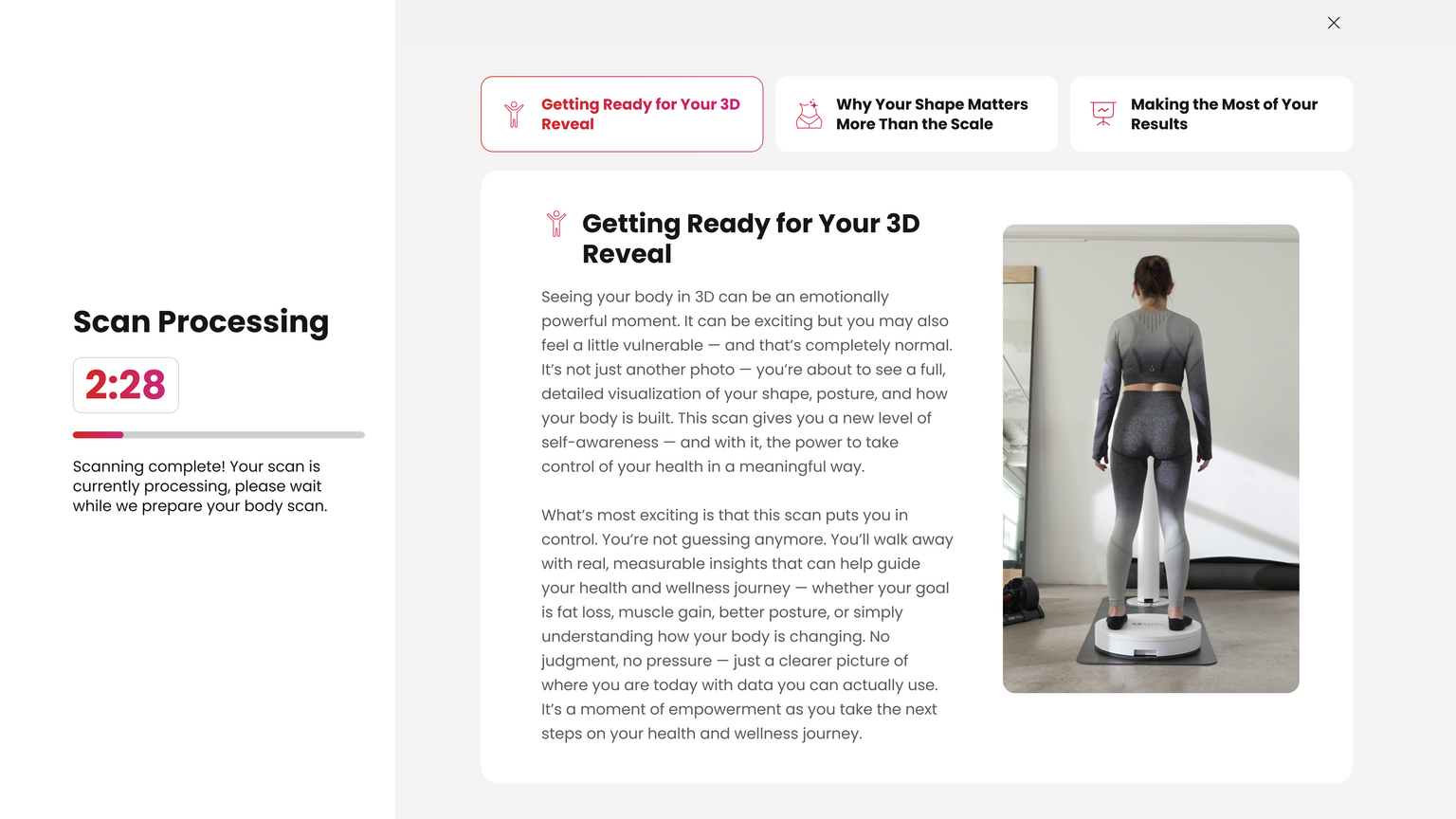
Review scan
Accept or Scan Again
Scan Again deletes the scan and restarts the process
Predicted measurements → Rescan recommended unless scan looks acceptable
Scan accepted
Client may review results in the software or log out
Tap Select Scans in bottom navigation
Choose scans to load into analysis
👤 View Profiles & Admin Settings (Admin Only)
From home screen, tap View Profile Only
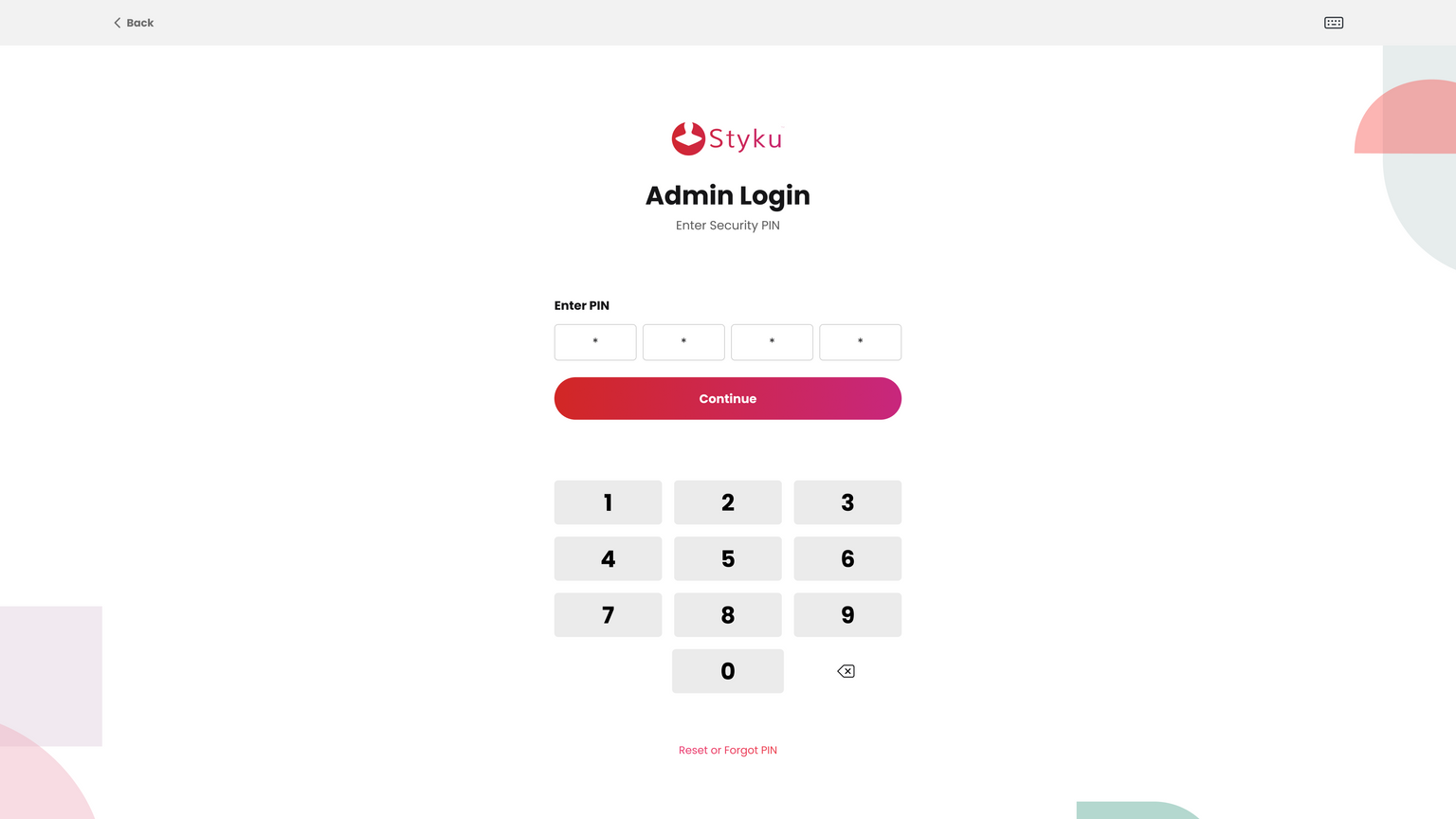
Enter Admin PIN
View client profiles and scans
Access settings, tools, and troubleshooting
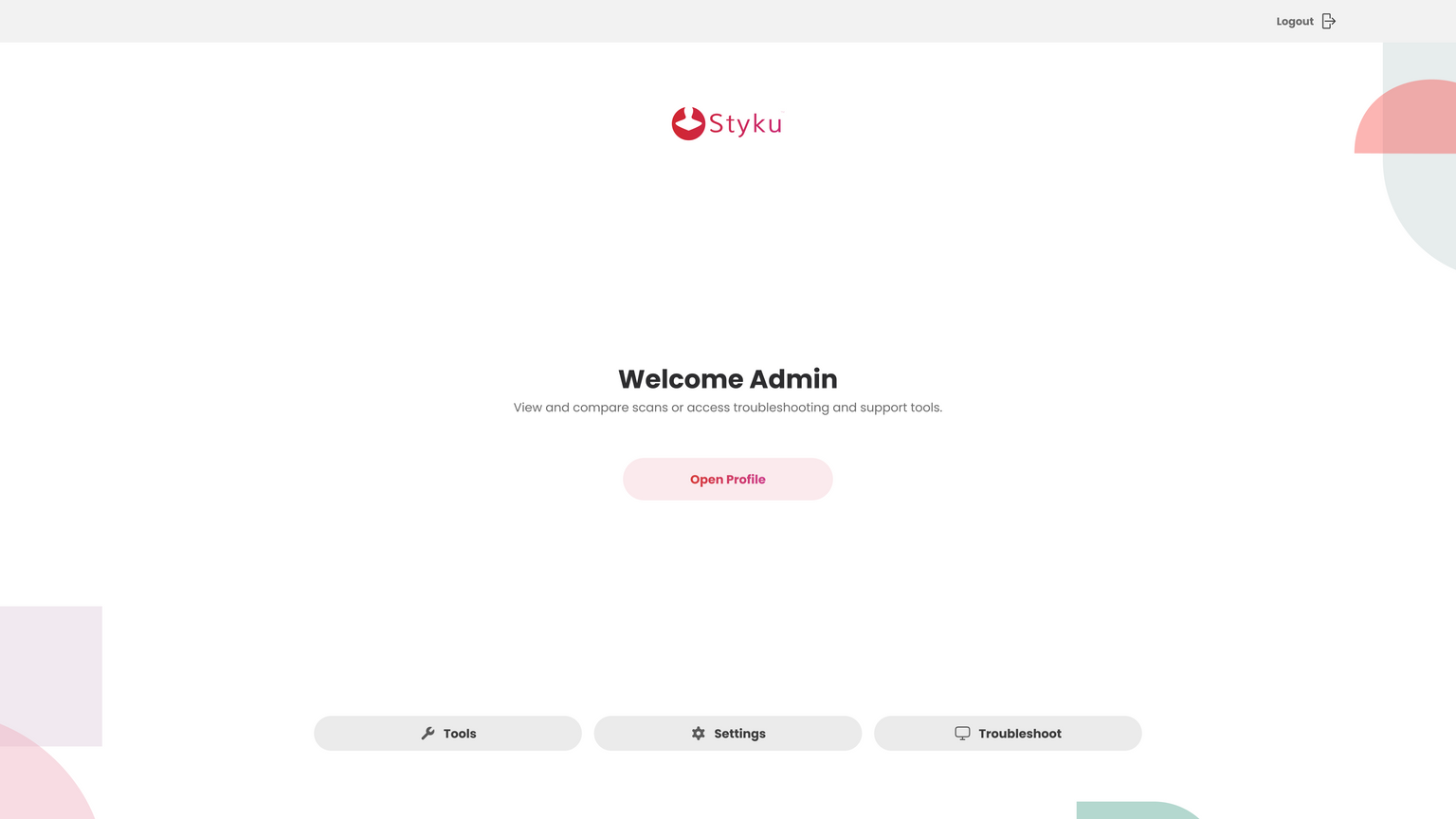
Select Open Profile
Search or select client from list
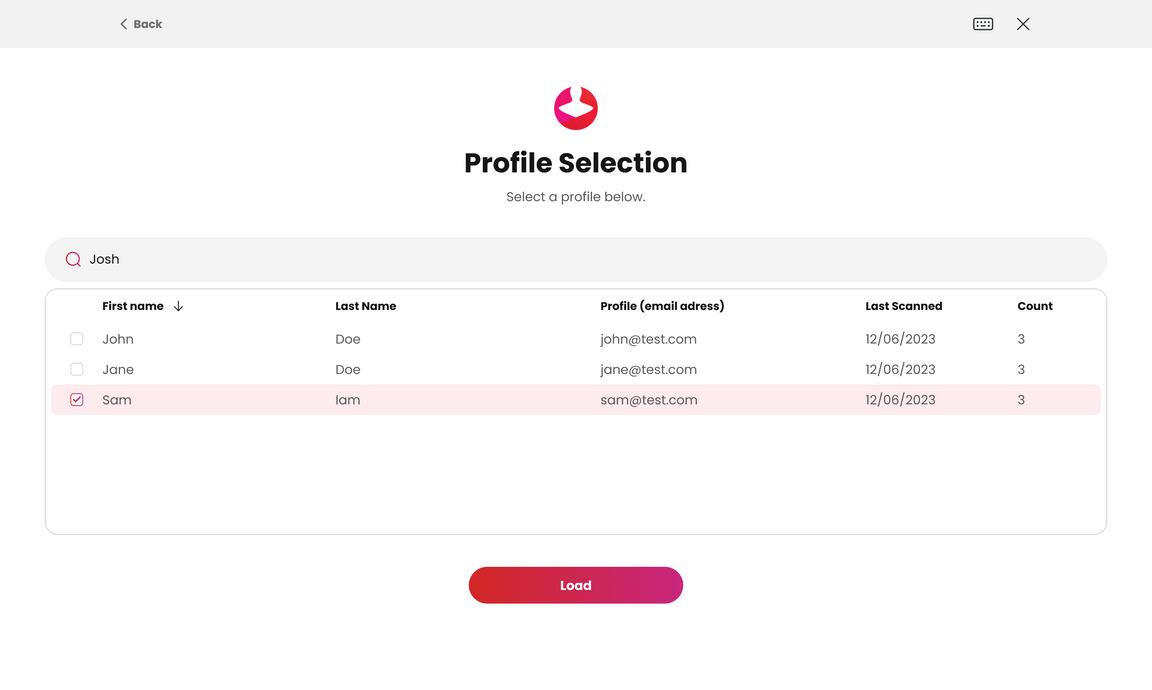
Select scans to compare
Scans load in analysis view