
How do I update my Styku to the latest version, or download the software?
How do I update my Styku to the latest version, or download the software?
Note: This update process takes about 10–30 minutes on average. Please schedule time to complete it.
Steps
Step 1 — Disconnect hardware
Important. Disconnect your Styku turntable and sensor from the computer before starting the update.
Step 2 — Download the latest software
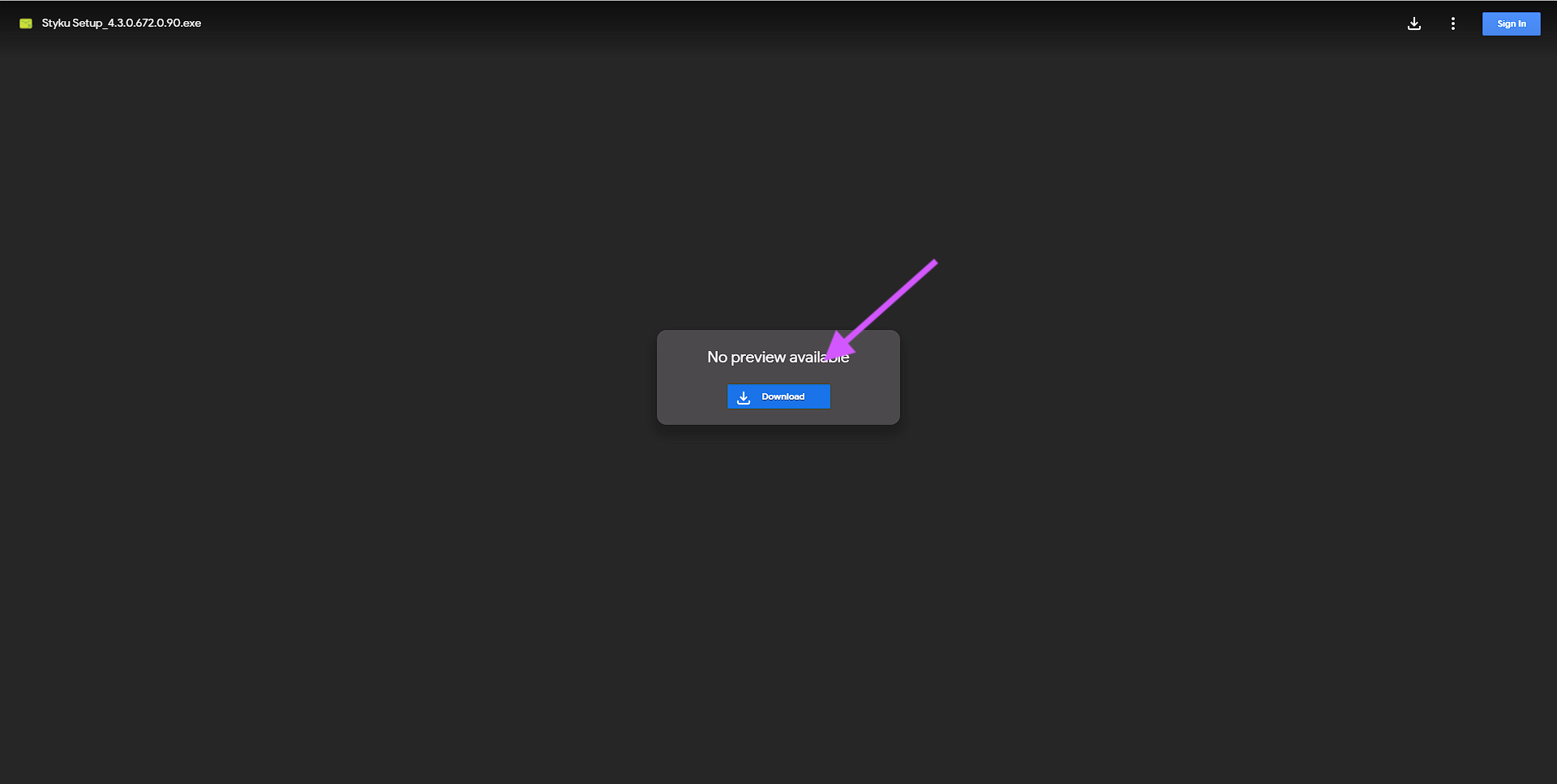
Click the link below and choose Download on the right side of the file (the download option appears when you hover over the file):
https://f.hubspotusercontent40.net/hubfs/2640795/Download%201-png-1.png
Step 3 — Confirm the download
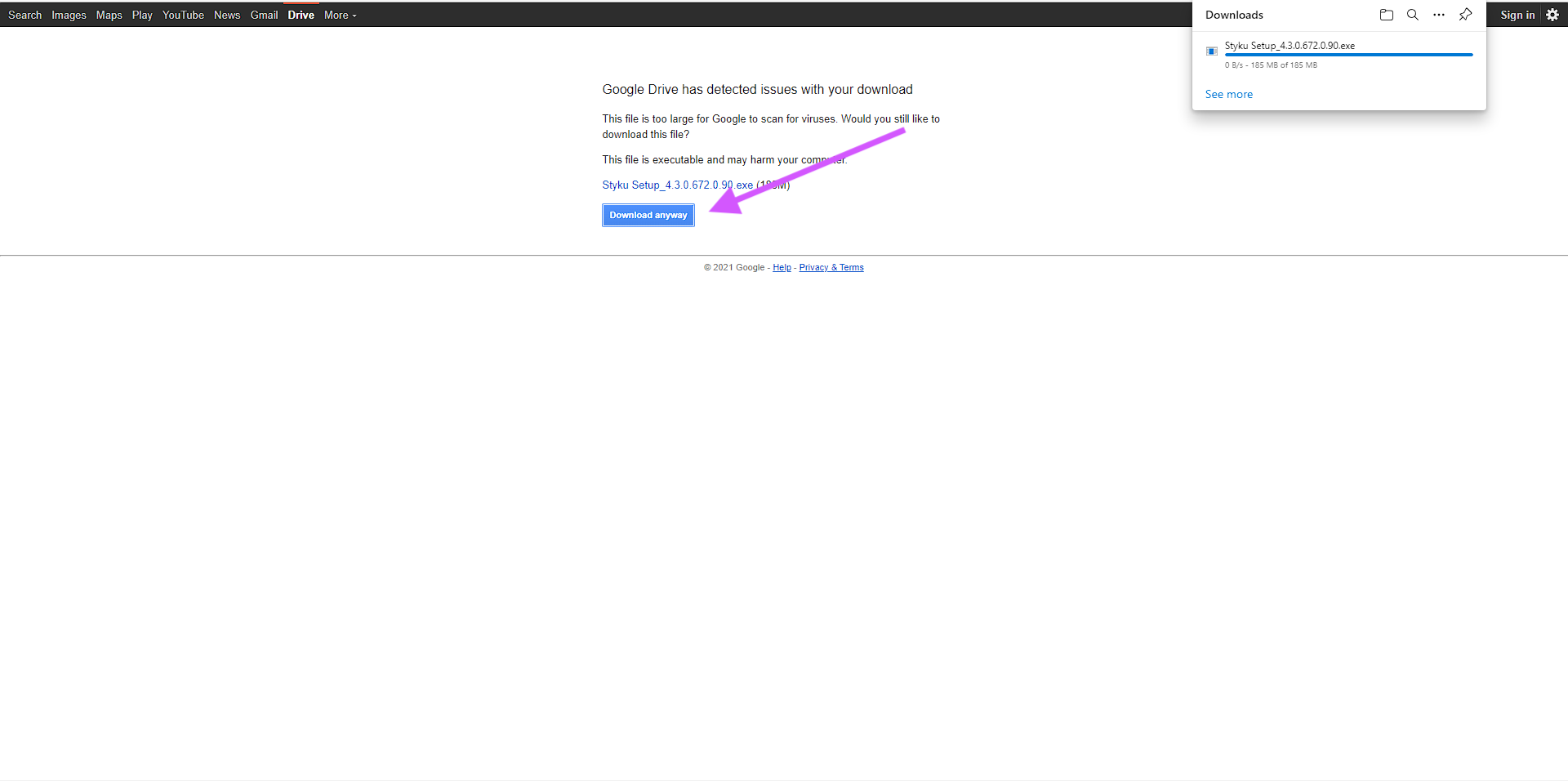
Click the download button on the next page.
https://f.hubspotusercontent40.net/hubfs/2640795/Download%202-png.png
Step 4 — Bypass the browser warning
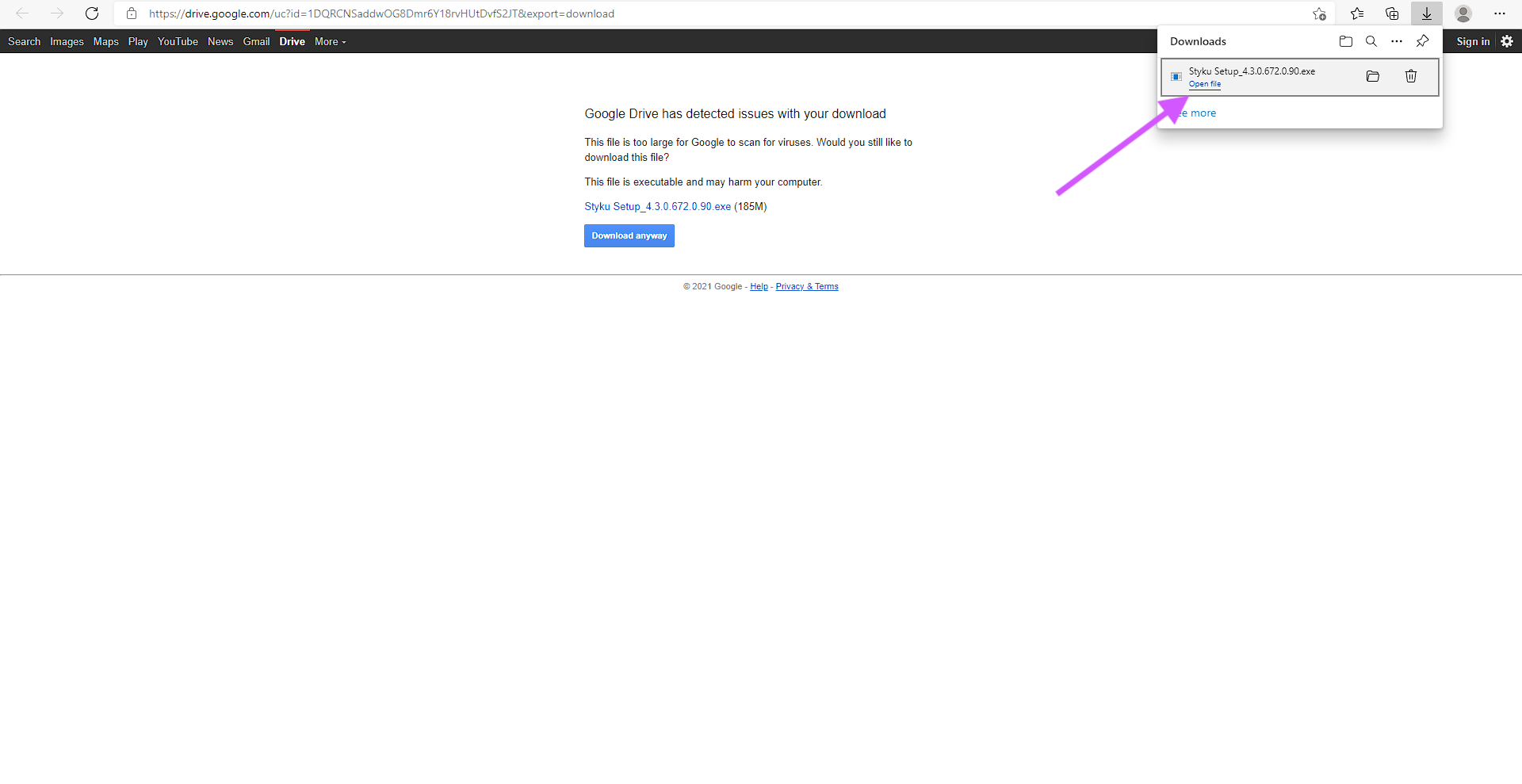
If your browser warns about the file, click Keep or Download anyway.
https://f.hubspotusercontent40.net/hubfs/2640795/Download%203-png.png
Step 5 — Open the installer
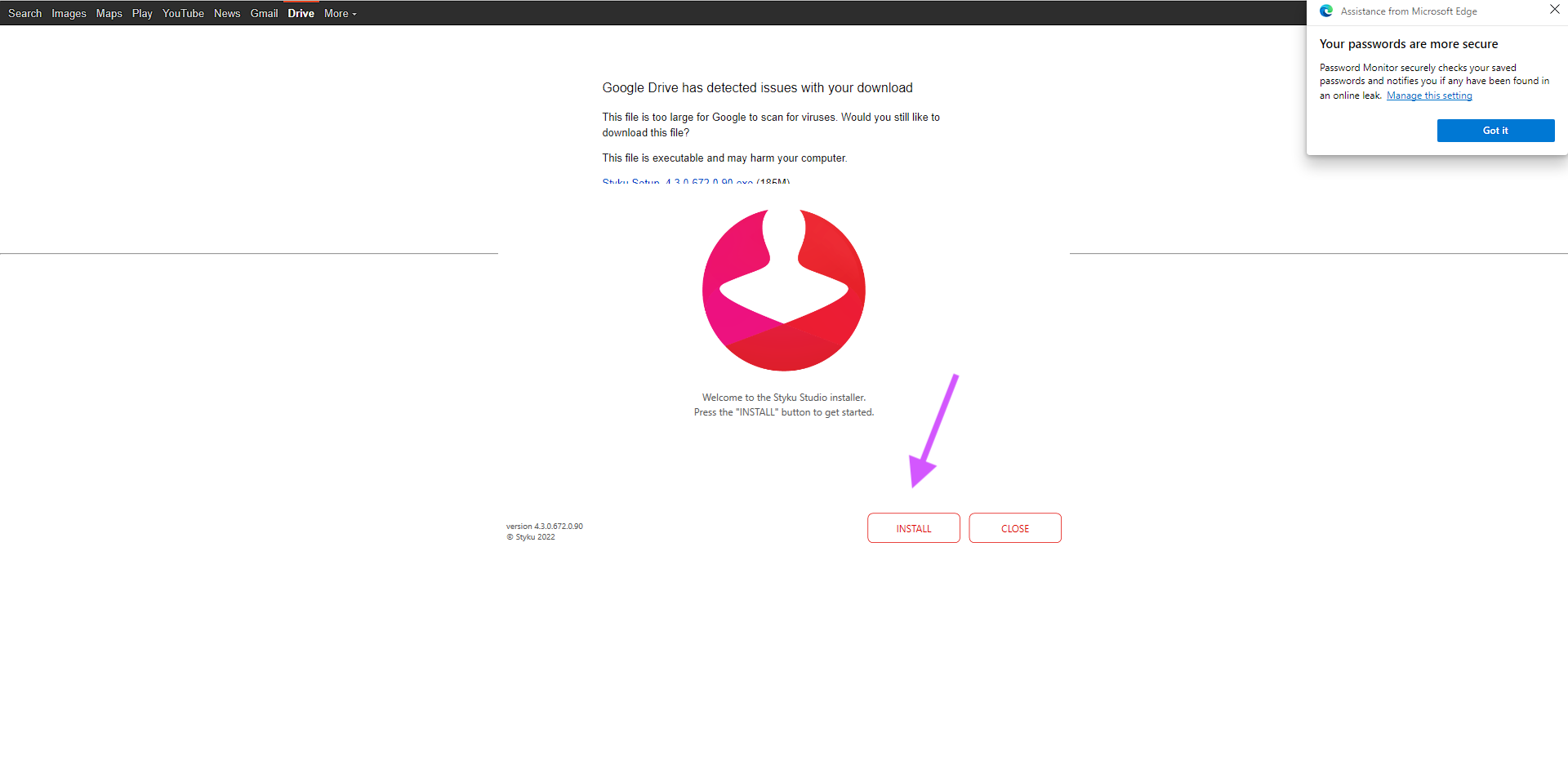
Click Open file in the top right of your browser, or run the downloaded .exe from your Downloads folder.
https://f.hubspotusercontent40.net/hubfs/2640795/Download%204-png.png
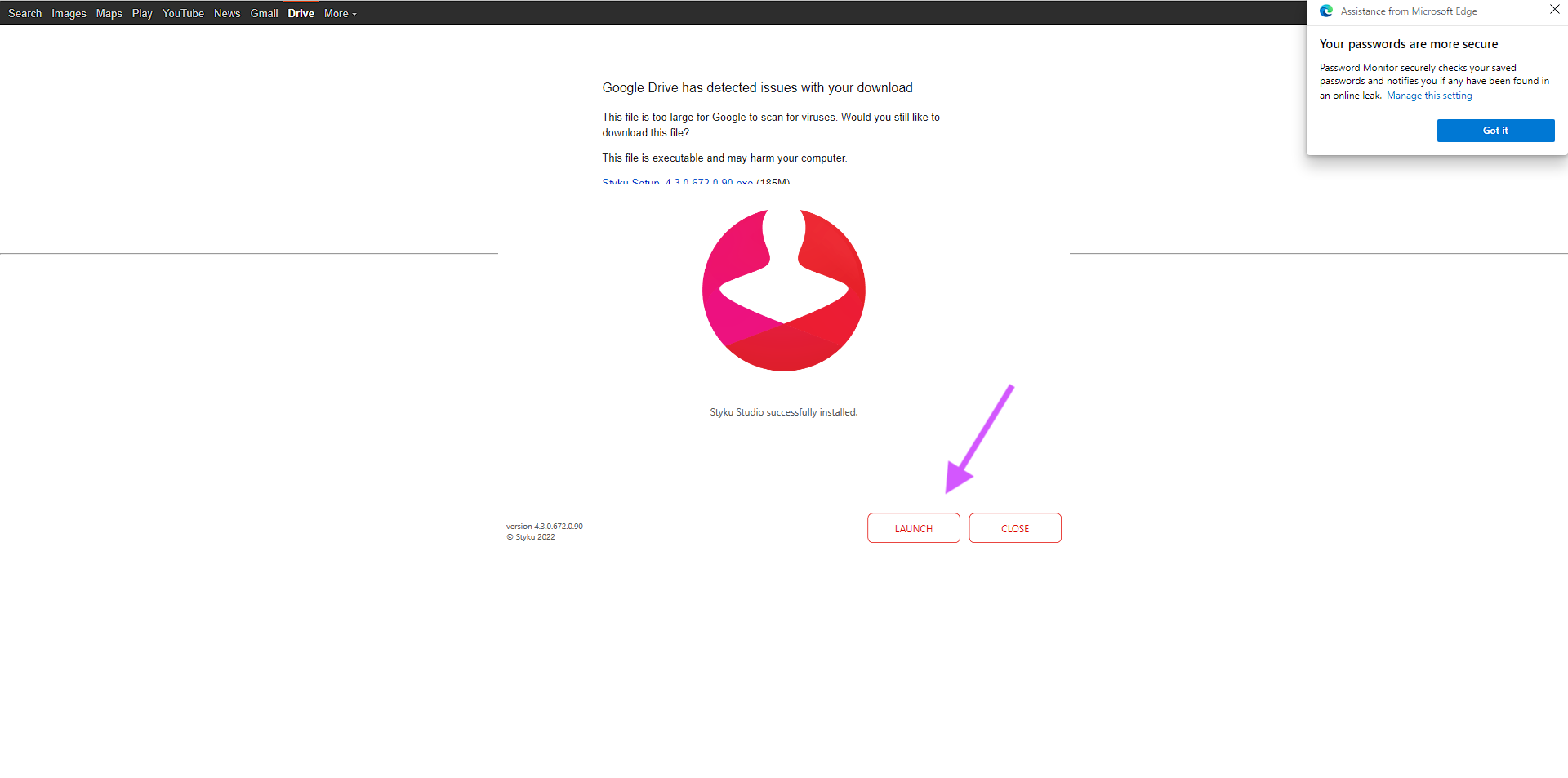
Step 6 — Install Styku
Click Install on the Styku window that opens, then click Launch when installation completes.
https://f.hubspotusercontent40.net/hubfs/2640795/Download%205-png.png
Step 7 — Log in or create your account
Follow the administrator account creation prompts.
Important: If you already have a Styku account, use your existing email and password to log in. If you don't remember your password, click Forgot Password to reset it. Do not choose Create Account — there is no need to create a new account.
For security, you may be asked to re-authenticate your credentials even if you've signed in before. You can skip this step a few times and complete it later if needed.
Step 8 — Choose your software preferences
Set your software preferences when prompted.
Step 9 — Finish
Once you've completed administrator setup, press Finish.
Notes
- Reconnect hardware after the update completes — plug the turntable and sensor USB cables back in once Styku Studio is fully launched.
- Your scan data is preserved. Scans are stored on Styku's servers and will reappear after the update.
- A license key can only be active on one computer at a time. If you are installing on a different machine, see the related install article for the license-reset process.
If this resolves your issue, no further action is needed.
If the problem persists, contact support through the Styku Business Portal at styku.com/portal and include: your Styku Studio software version (before and after the update if applicable), the exact step where the update fails, any error messages, and the Windows version on your computer.
Applies to: Styku Studio V5, all current Styku scanner models, Windows 10 and Windows 11 computers.
Related Resources
- How do I install and activate Styku Studio software on my computer?
- How do I find and install the Styku Studio V5 update?
- What's new in Styku Studio V5, and should I install the update?